Appearance Settings
PrimeCal lets you personalize the look of your calendar workspace to match your style or make it easier to tell different contexts apart at a glance.
Where To Find Appearance Settings
- Click your avatar or name in the top-right corner.
- Select Profile.
- Scroll to the Personalization section.
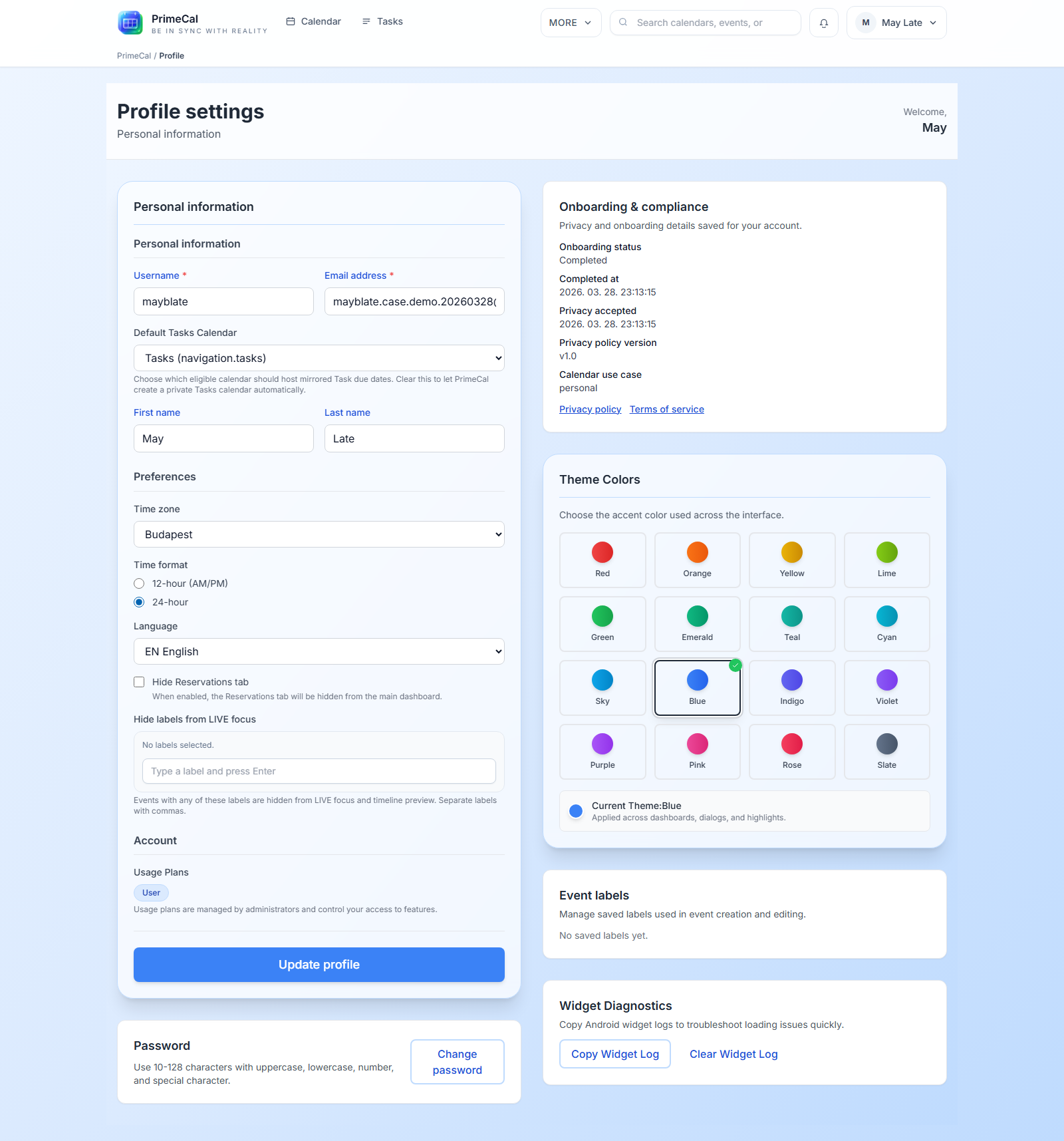
Theme Color
Your theme color influences the accent color throughout the PrimeCal interface — buttons, highlights, active states, and gradient elements adapt to your chosen color.
Available colors (16 total, in rainbow order):
| Name | Hex | Great for |
|---|---|---|
| Red | #ef4444 | High-energy, urgent feel |
| Orange | #f59e0b | Warm, friendly |
| Yellow | #eab308 | Bright, cheerful |
| Lime | #84cc16 | Fresh, natural |
| Green | #10b981 | Calm, balanced |
| Emerald | #22c55e | Professional, clean |
| Teal | #14b8a6 | Cool, focused |
| Cyan | #06b6d4 | Light, airy |
| Sky | #0ea5e9 | Open, modern |
| Blue | #3b82f6 | Classic, dependable |
| Indigo | #6366f1 | Deep, thoughtful |
| Violet | #7c3aed | Bold, creative |
| Purple | #8b5cf6 | Vibrant, expressive |
| Pink | #ec4899 | Warm, personal |
| Rose | #f43f5e | Vivid, energetic |
| Slate | #64748b | Neutral, minimal |
How to change your theme color:
- Open Profile → Personalization.
- Click the color swatch you want.
- Save changes — the UI updates immediately.
In the Late Family demo setup, May chose Rose (#f43f5e) to match her personal calendar color. Will chose Indigo to match his work-focused style. Sue and Noah each have their own colors too — making it easy to know at a glance which family member is viewing the shared screen.
Calendar Width
Some users prefer a full-width calendar that uses the entire screen. Others prefer a more compact layout that leaves room for focus and reduces visual noise.
- Full width: the calendar grid expands across the entire browser window
- Contained: the calendar grid stays within a max-width container — easier to read on large screens
Find this option under Profile → Personalization → Calendar layout.
If you work on an ultra-wide monitor, the contained layout helps keep events from stretching too far horizontally.
What Your Theme Color Does NOT Change
Your personal theme color affects the UI chrome — it does not change the colors of your calendars or events. Calendar and event colors are set separately (see Calendar Colors and Visibility).
Your System's Accessibility Settings
PrimeCal follows what you have told your computer or phone, so there is nothing to switch on inside the app:
- Reduce motion (macOS and iOS "Reduce motion", Android "Remove animations", Windows "Show animations" off). Panels and buttons change at once instead of sliding or fading, decorative animations stop, and a view that used to glide to a place - the Now view back to the present moment, the bottom bar to the page you opened - jumps there. A loading spinner keeps turning: it is feedback, not decoration.
- Increase contrast. In the calendar, the pale lines between days and the grey secondary text become firm, dark ones.
- Windows high contrast (forced colors). Your own palette is used throughout. Where the calendar used a fill to say something, it says it again in your colours: the selected view and today's date are highlighted, the selected day is outlined, a calendar that is switched on shows a real checkbox, the hour lines are drawn, and each event has an edge.
For larger text, see the Comfort skin in Skins & Appearance.