Family Mode
Family Mode is for a household that shares one calendar. It opens on the People view: one day, with a column for each person, and a strip across the top that answers the question a family asks most — where is everyone, and who is next? The buttons are big, the rows are roomy, and nothing needs dragging, so it works on the tablet that lives in the kitchen as well as it does on a phone.
Family Mode is about how the calendar is laid out, not about what you pay for: it is available on every plan, and it is not the same thing as the Family plan, a subscription with seats (see Managing Your Subscription).
A Calendar For Each Person
The People view treats a calendar as a person. Make a calendar for each member of the household — "Emma", "Noah", "Mom", "Dad" — or have the family share their calendars with each other (see Sharing Calendars), and each one that is switched on in the calendar list gets a column. Switch a calendar off in the list and its column goes; the order of the columns is the order of the list. A calendar for a room or a court (a reservation calendar) is a place, not a person, and gets no column.
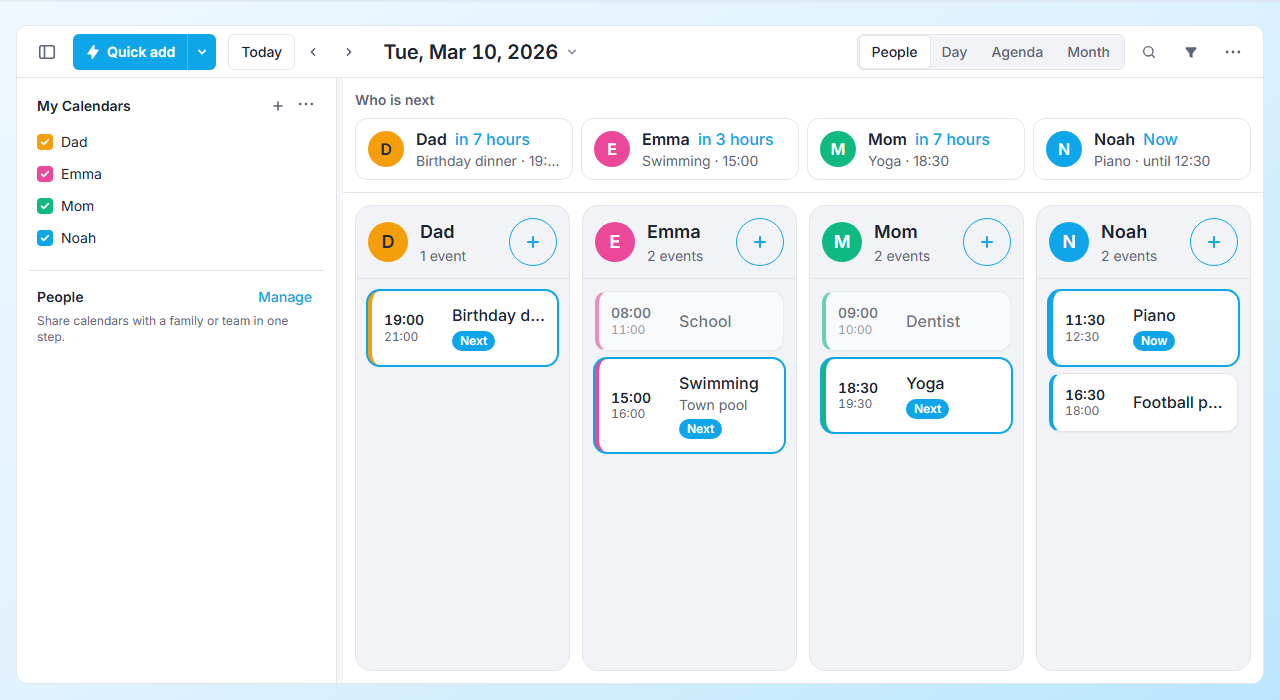
What The People View Shows
- Who is next — across the top, for today, a line for each person: what they are doing now ("Now · Piano · until 12:30"), what comes next and how far off it is ("in 3 hours · Swimming · 15:00"), or that they are free ("Nothing more today"). Tap a person who has something on to open it. The strip updates by itself as the day goes on. On another day there is no "now", so the strip is not shown.
- A column for each person — their name and colour, how many events they have, and their day: all-day events first, then each event with its start and end time, title and place. An event that is over fades; the one on now and the one coming next are outlined and marked Now and Next.
- An add button for each person — the + at the top of a column. It starts Quick add with that person's calendar already chosen and the day you are looking at, so all that is left to say is when: "Swimming 15:00-16:00". That is "for whom, then when". A calendar you can only read (one shared with you read-only) has no add button.
- Their events, opened — tap an event for its card with Edit, Duplicate and Delete.
Use the arrows (or the ← and → keys) to go to another day, and Today to come back. On a phone the columns stack — a person to a section — and a swipe sideways changes the day.
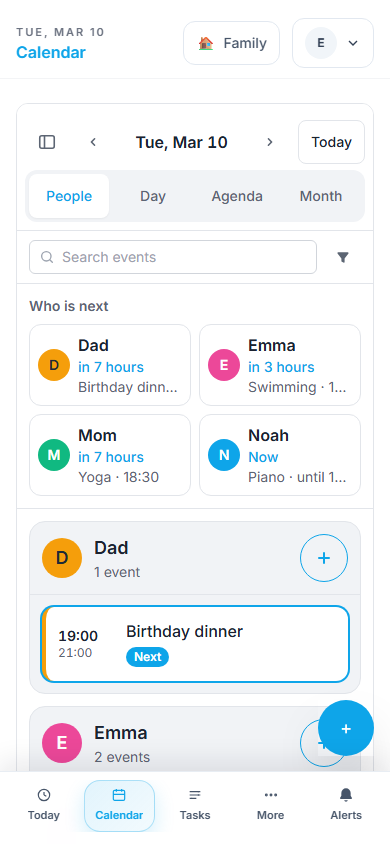
What Changes In Family Mode
- The calendar opens on People, with People, Day, Agenda and Month as its four views. A link to any other view opens People instead. (The People view is also in every other mode's views menu and on the P key, apart from Simple, which keeps to its three.)
- Roomy rows, and no dragging. Rows are drawn at the roomy density, and events are opened and changed with buttons (Edit on the event's card) rather than by dragging — it is a touch screen shared by the whole family, and a stray drag should not move anyone's appointment.
- Quick add is the main button, as in Standard: type "Dentist friday 3pm" and press Enter. New event — the full editor — is the first item in the arrow beside it.
- The family's parts stay; the workplace's go. Calendar groups, People groups and sharing, Screens (a wallboard for the kitchen), external calendar sync and tasks are all there. Automation, AI Agents, booking links, developer tools and the personal log are hidden.
Nothing is deleted or changed by switching: your events, tasks and calendars are exactly as they were.
How To Switch To Family Mode
Open the mode selector pill in the header (or Profile → Experience) and choose Family. The switch is instant — no PIN required. If the calendar is open, it moves to the People view.
Tips
- Give each person a colour of their own when you create their calendar: the column, the dot in the strip and the event's edge all use it.
- Put the tablet on the People view and leave it: the strip moves on by itself.
- Mention a person in a sentence to add for them without going to their column:
Swimming friday 3pm @Emma— see Quick Add. - Chores and what is running low in the house are on the Today page and in the Tasks area, which stay one tap away in the navigation.