Creating Your First Event
PrimeCal uses one main event modal for both creation and editing. Once you understand this modal, you understand the basic scheduling workflow everywhere in the app.
Ways To Start A New Event
- Click
New Event - Click a day in Month view
- Click or drag a time range in Week view
- Create directly from the live timeline in Focus view
The Event Modal
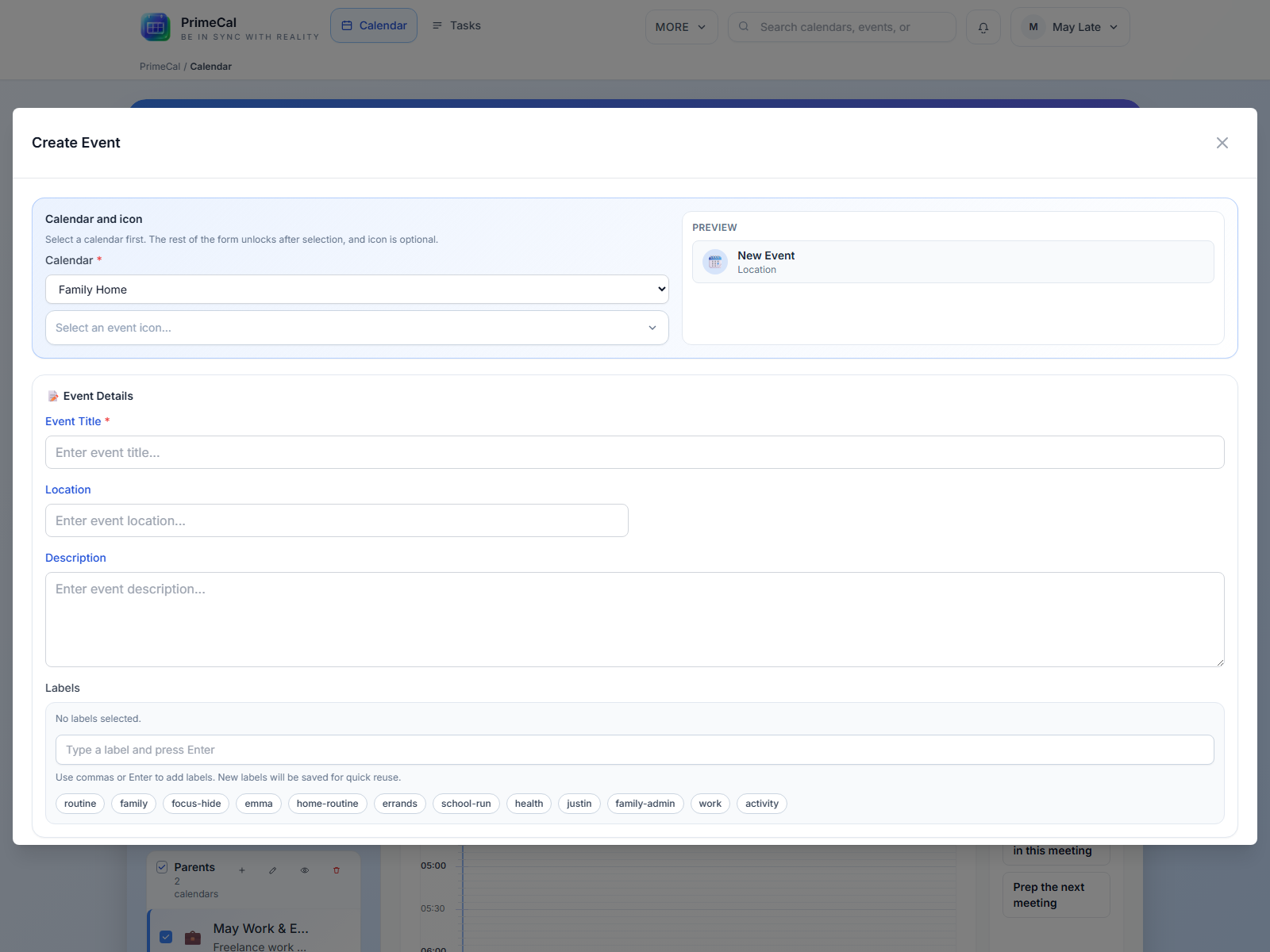
Visible Fields
| Field | Required | What it does | Rules and constraints |
|---|---|---|---|
| Title | Yes | Main event name | Use a clear name that is easy to scan in Month and Week view. |
| Calendar | Yes | Chooses where the event lives | Pick the correct calendar before saving. |
| Start | Yes | Date and time the event begins | Required unless the event is marked all-day. |
| End | Yes | Date and time the event ends | Must be the same day or later than the start. |
| All-day | No | Removes time-of-day scheduling | Best for birthdays, travel days, deadlines, or school holidays. |
| Location | No | Meeting place or address | Helpful in Week and Focus view when location matters. |
| Description or notes | No | Extra context | Use it for agenda notes, reminders, or details the title should not carry. |
| Color | No | Event-specific override | Leave it empty to inherit the calendar color. |
| Labels | No | Reusable event tags | Useful for filtering and focus rules. |
| Recurrence | No | Repeats the event | Use it for routines such as school pickup, weekly sports, or recurring calls. |
A Good First Event Flow
- Create a regular calendar first, such as
Family. - Open the event modal from the view you prefer.
- Enter a short title.
- Confirm the calendar.
- Set the start and end.
- Add location, labels, or recurrence only if they help.
- Save the event.
Recurrence
Recurring events are created from the same modal. Use recurrence for routines such as:
- school pickup every weekday
- weekly shopping
- recurring training
- regular calls
If you are not sure yet, create a one-off event first and add recurrence later after you see the event in the calendar.
What To Check After Saving
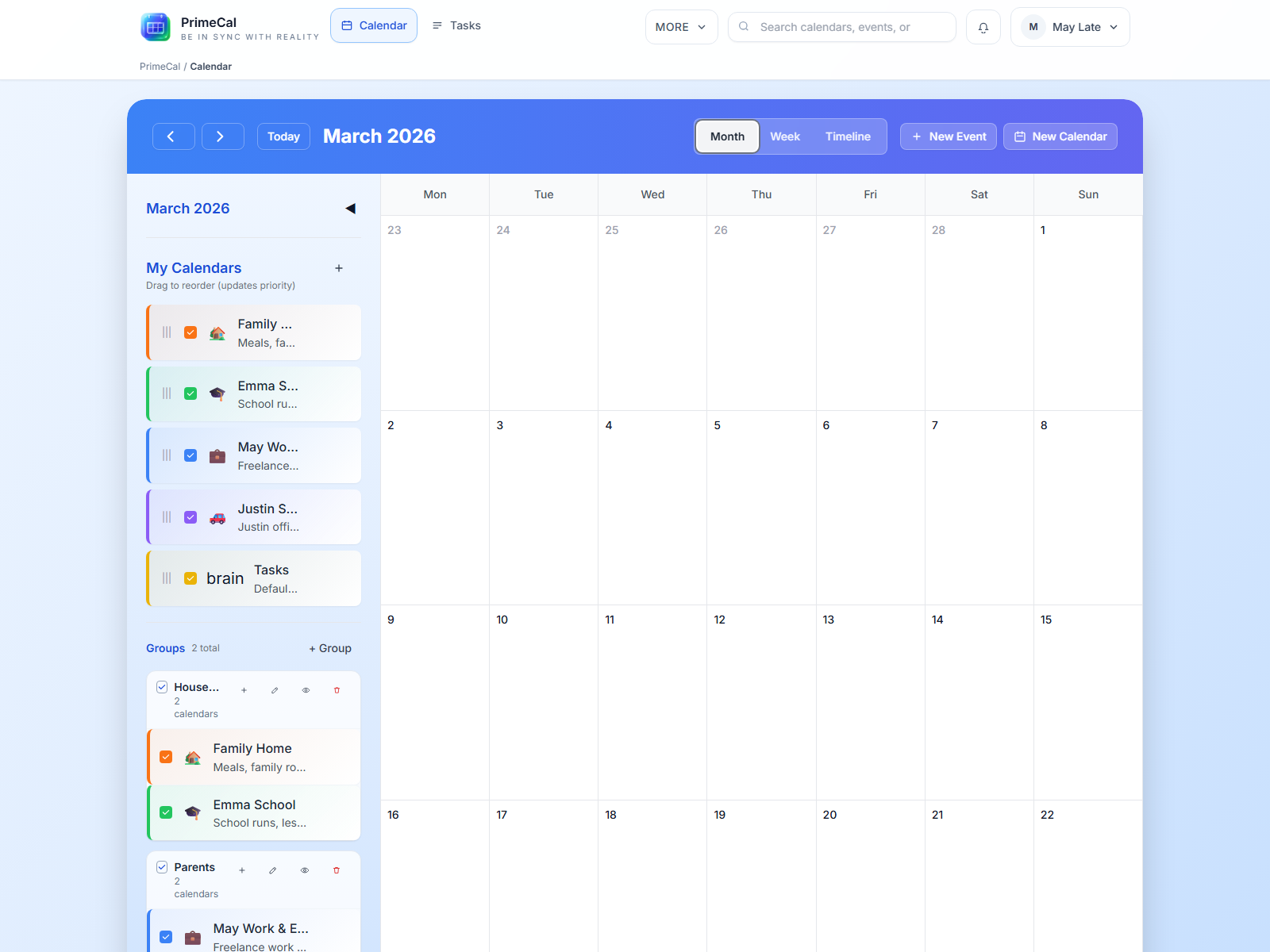
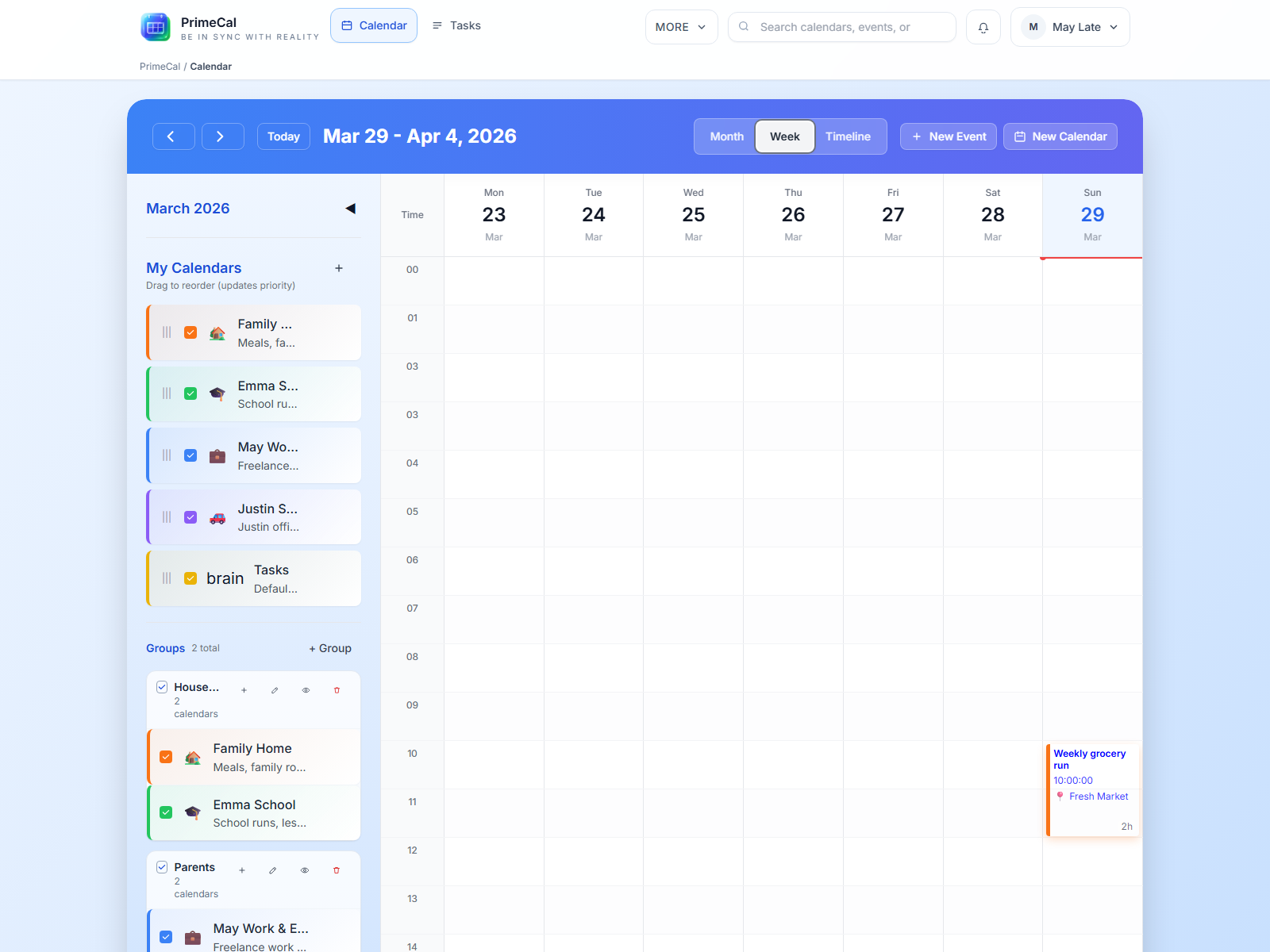
- the event appears in the correct calendar color
- the time lands in the correct place in Week view
- the event is easy to find in Month view
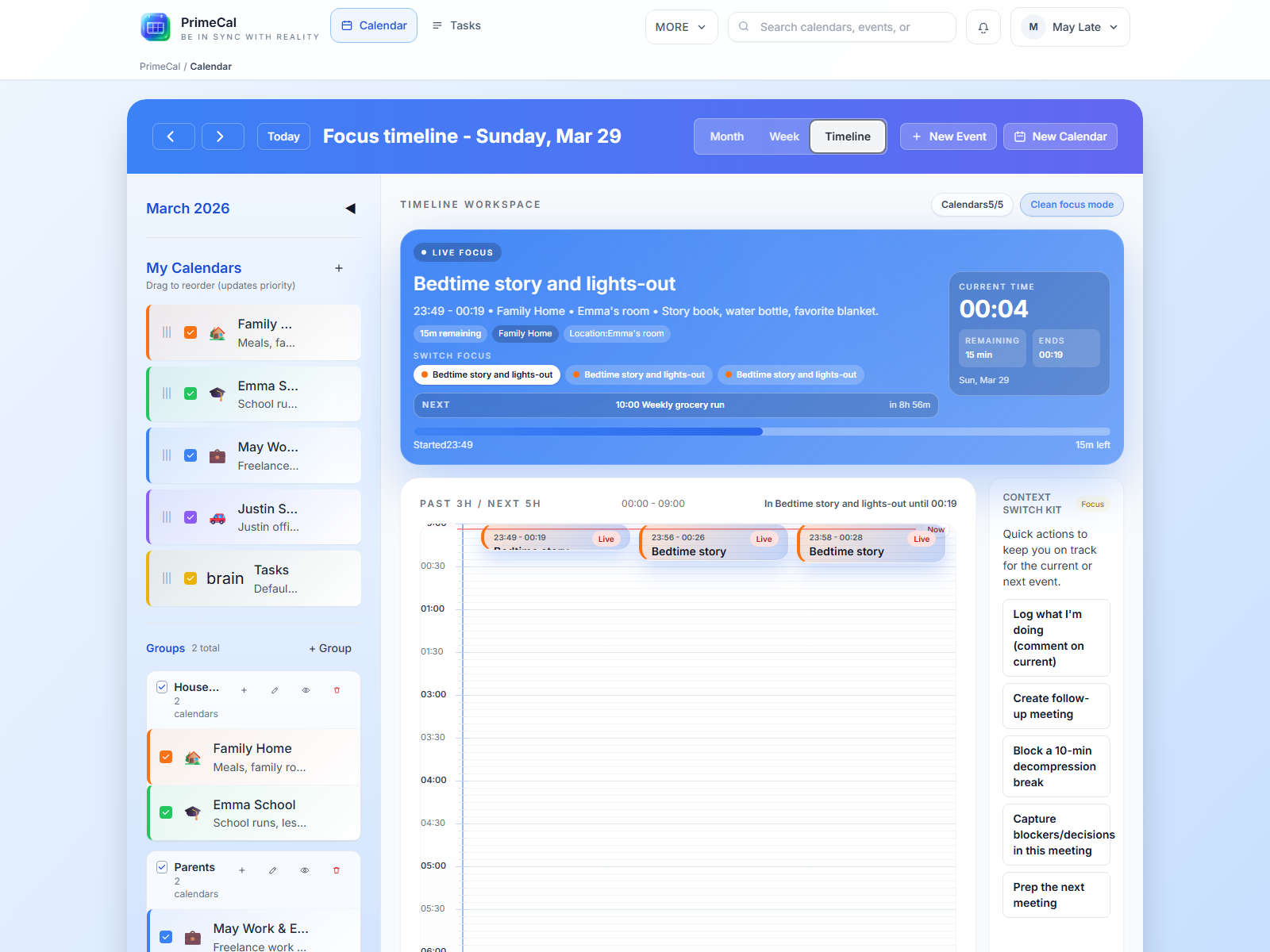
- Focus view shows it at the right time if it is happening soon
Best Practices
- Keep titles short. The views become much easier to scan.
- Use calendar colors for broad meaning and event colors only when a specific event needs extra emphasis.
- Use recurrence for real routines, not for uncertain plans.
- Review the result in at least one other view after saving the event.
Developer Reference
If you are implementing event forms or recurrence support, use the Event API.