Fast Path
Quick Start Guide
Use this page when you want the full first-run sequence in one place. It mirrors the same screens a new PrimeCal user sees in the live product.
Account creationOnboarding wizardCalendar groupsFirst event
The Fast Path
1
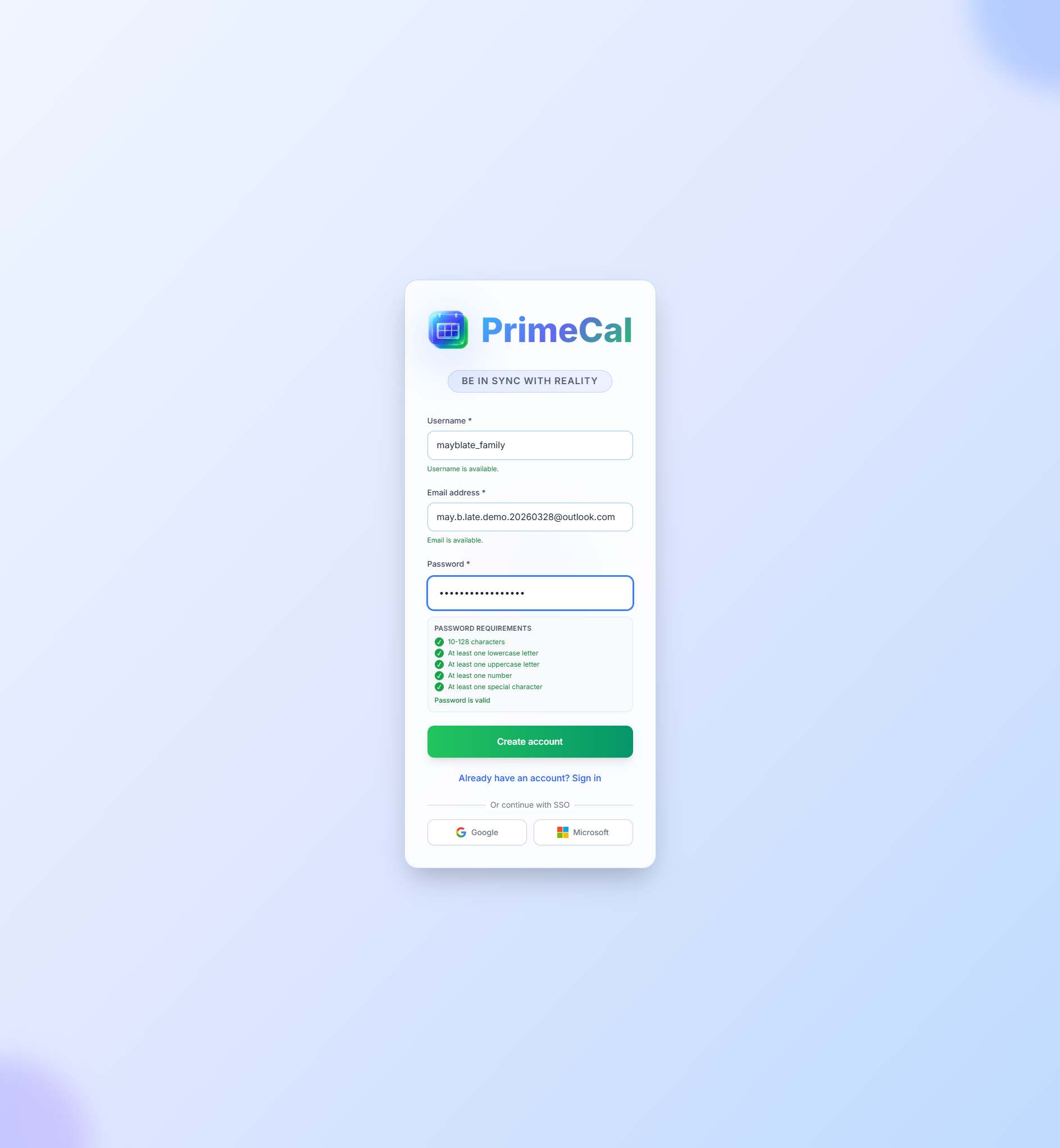
Create Your Account
Open Sign up, enter your username, email address, and password, then submit Create account.
2
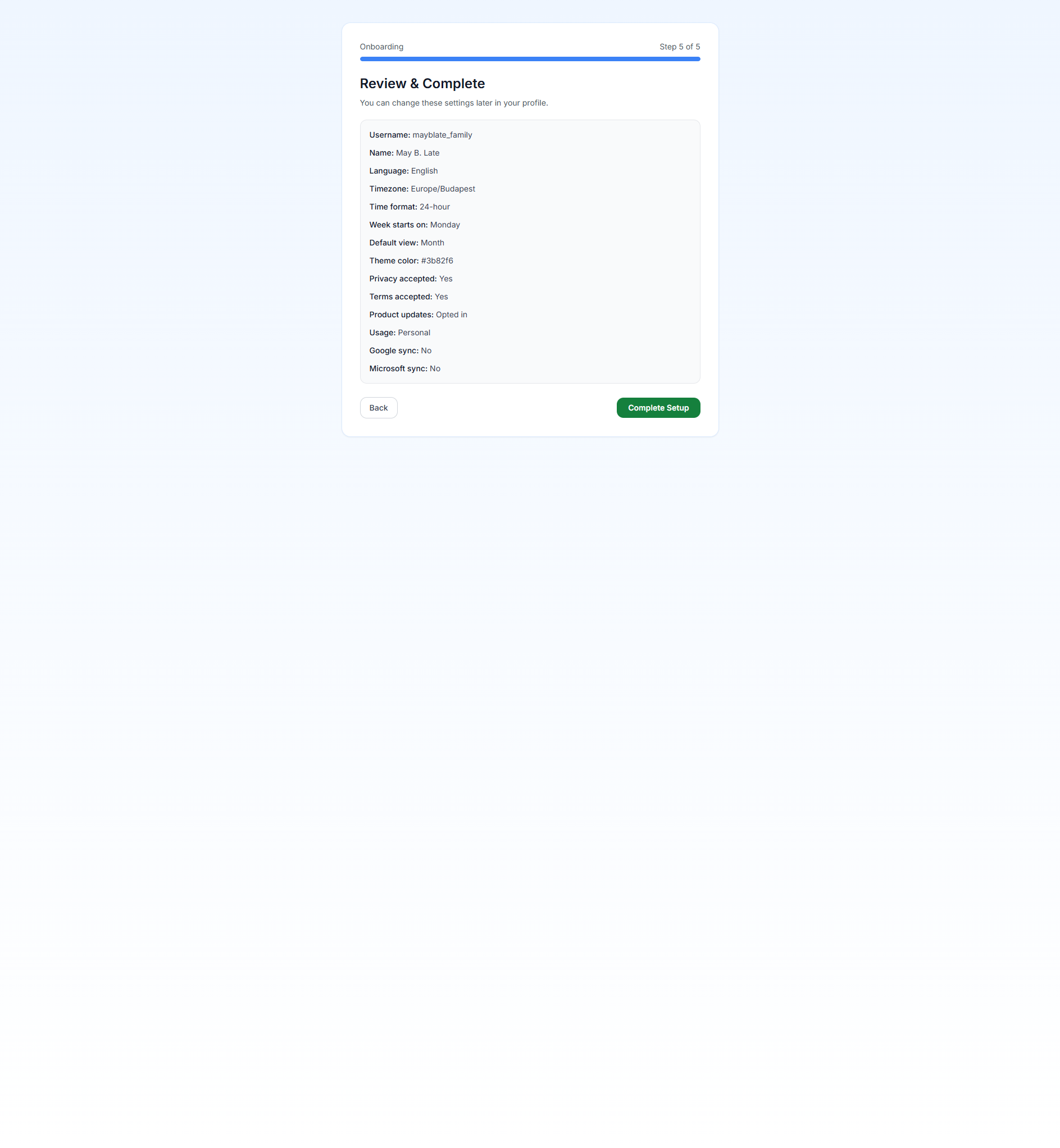
Complete The Wizard
Finish the five onboarding steps for profile, personalization, privacy, calendar preferences, and review.
3
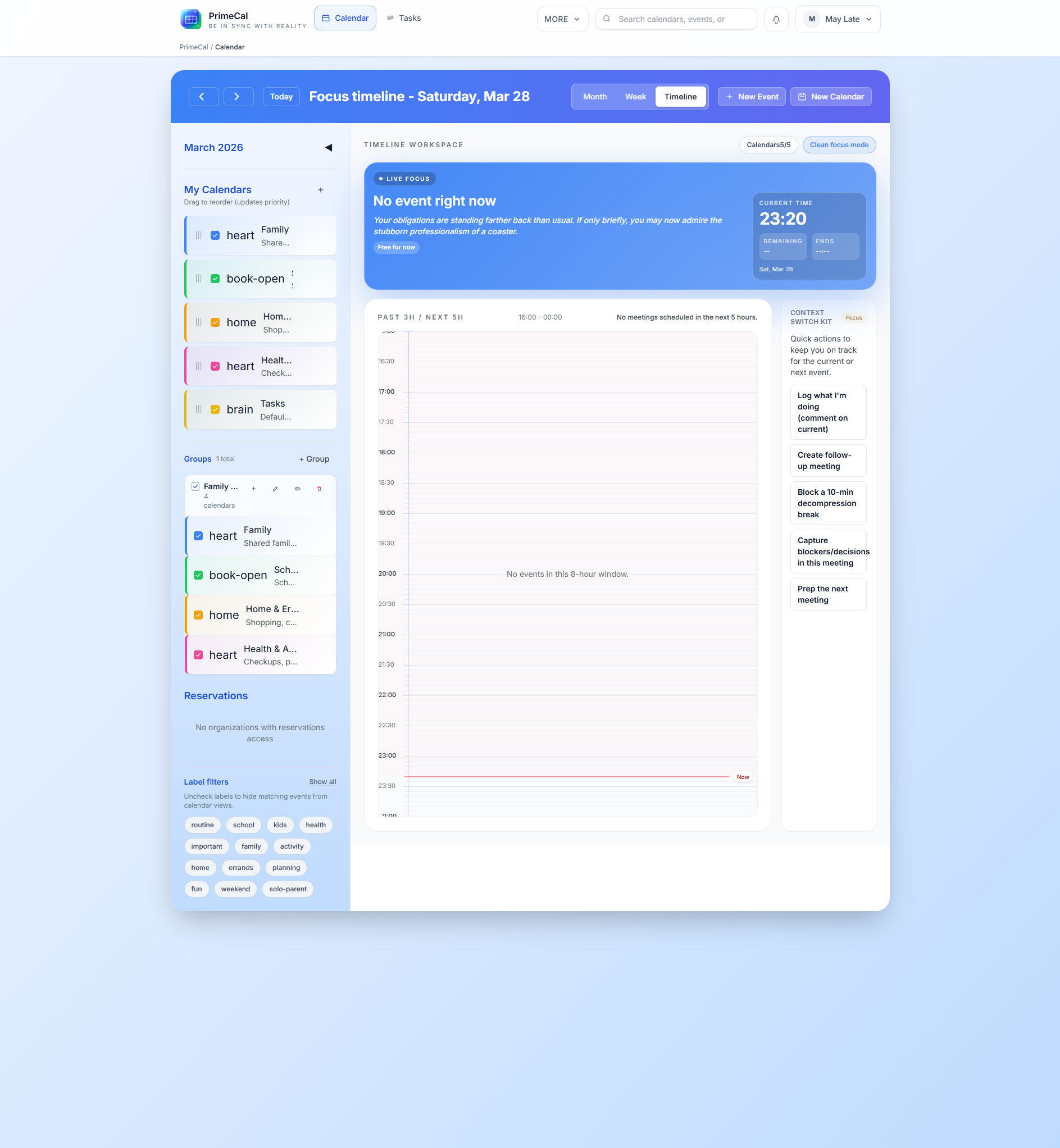
Create Your Calendar
Use New Calendar to create a normal calendar such as Family, Personal, or Work.
4
Organize Groups
Create a group if you want to keep multiple calendars together in the sidebar.
5
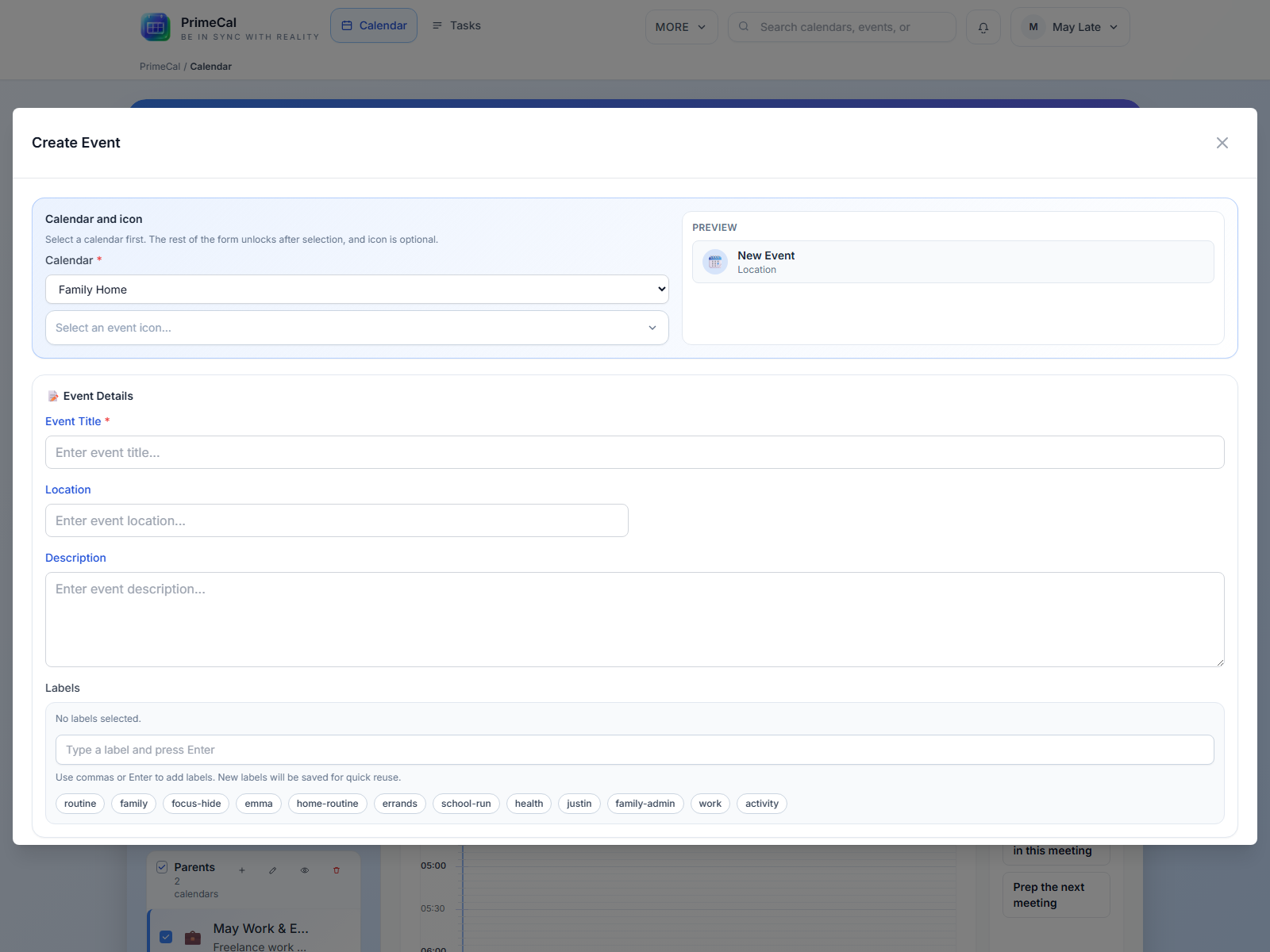
Create Your First Event
Use New Event or click directly in a calendar view, then save the event through the shared modal.
What You Will Configure
- account identity and secure sign-in
- language, timezone, time format, week start, and default view
- privacy acceptance and optional product-update consent
- at least one regular calendar and optional calendar groups
- the first real event in the month, week, or focus workflow
Screens You Will See
Best Practices For New Users
- Finish the full onboarding flow before trying to configure advanced features like sync, automation, or AI agents.
- Create a regular calendar before creating lots of events so your day-to-day schedule does not mix with the default tasks calendar.
- Choose calendar colors early and keep them consistent across family, work, and personal spaces.
- Add only the groups you need. Too many groups make the sidebar harder to scan.