PrimeCal User Docs
Learn PrimeCal From The Same Screens Your Users See
This section follows the normal PrimeCal journey after sign-up: profile setup, calendar work, event creation, tasks, automation, external sync, AI agents, and personal logs.
Where To Go Next
Profile
Profile Page
Update identity, language, timezone, theme, labels, passwords, layout preferences, and Focus-view filters.
Calendar
Calendar Workspace
Create and manage calendars, groups, colors, and visibility across the views.
Sharing
Shared Calendars With People Groups
Create people groups, invite members, and share calendars with families, teams, and clubs.
Tasks
Tasks Workspace
Capture quick tasks, edit rich task details, and organize labels without leaving PrimeCal.
Tasks
Routines and Templates
Clone chore templates, assign fair rotation, and start a routine on schedule, by hand, or from an automation.
Household
Household Inventory
Track shared items with shelf-life awareness so PrimeCal can raise a restock task automatically.
Highlighted
Automation
Create rules with triggers, conditions, actions, filters, and execution history.
Connections
External Sync
Connect Google or Microsoft calendars and decide exactly which calendars stay linked.
Bell icon
Notifications
Understand priority levels, inline actions, muting, and email/push delivery from the Notification Center.
Highlighted
AI Agents (MCP)
Configure scoped agents and connect standards-compliant MCP hosts through PrimeCal's dedicated MCP server.
Privacy
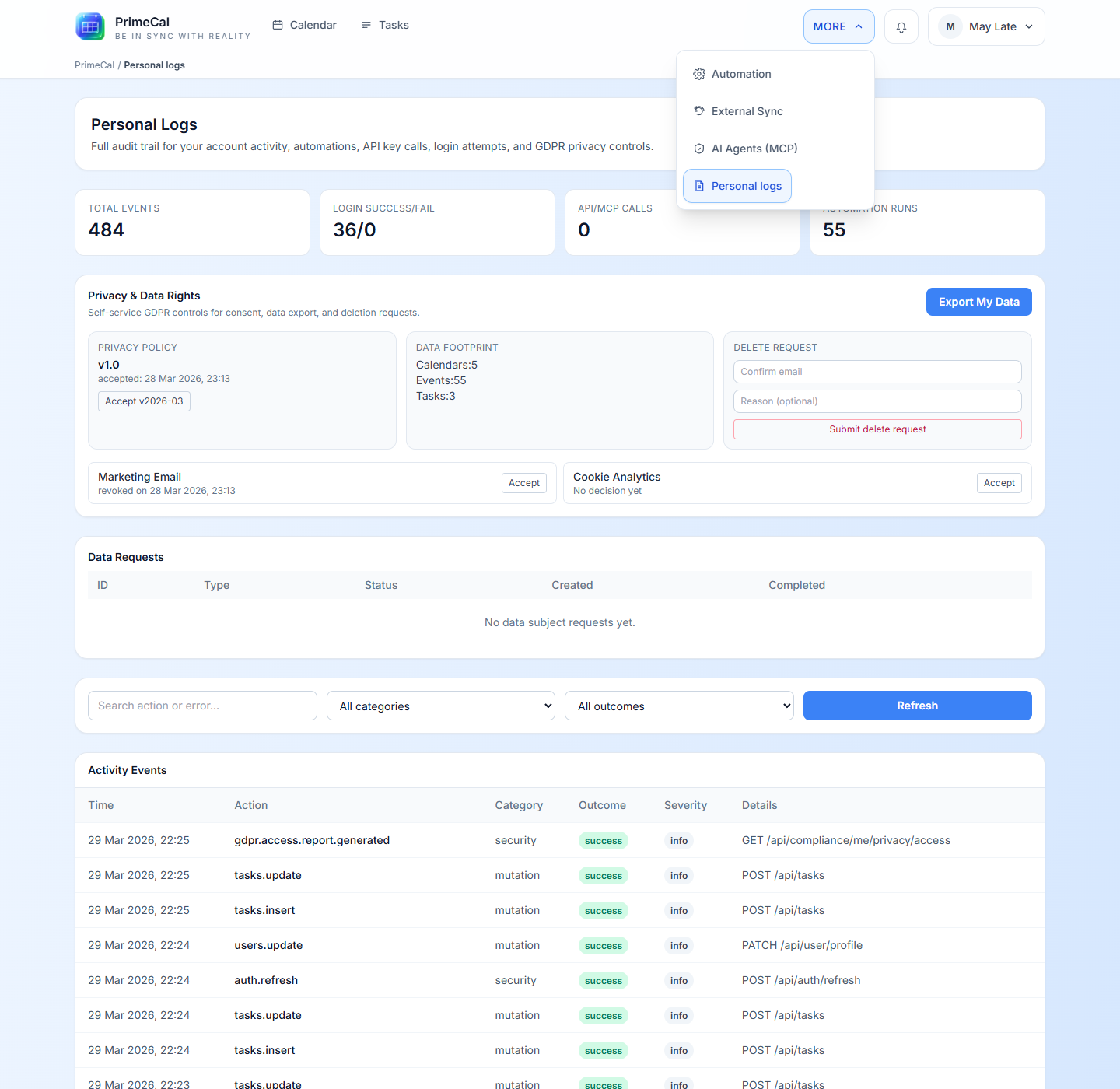
Personal Logs
Review private account activity, privacy choices, and your own recent log history.
Views
Focus, Month, and Week
Understand how the same calendar data appears differently in each view, including why Focus stays compact.
Profile
Experience Modes & Skins
Switch between Production, Focus, and Kid Mode, and see how Skins change the look without changing what you can do.
Fast answers
FAQ
Jump to the short answers when you need a quick decision instead of the full walkthrough.
Feature Navigation
The main calendar and tasks areas are visible in the top workspace. More advanced tools are collected under More.
Recommended Reading Order
- Profile Page
- Calendar Workspace
- Shared Calendars With People Groups
- Creating Events
- Calendar Views
- Tasks Workspace
- Routines and Templates
- Focus and Scheduling
- Household Inventory
- Introduction To Automation
- Smart-Home Automation
- External Sync
- Notification Settings
- AI Agents (MCP) Overview
- Personal Logs
- Experience Modes Overview
Developer Details
The user guide intentionally stays product-focused. If you need endpoint contracts, restrictions, or request examples, continue into the Developer Documentation.