Setting Up Booking Links
Use this page when you need to publish a PrimeCal booking link that customers can actually use end to end, including paid services and translated customer screens.
Time to complete: 10-15 minutes
Difficulty: Intermediate
What A Booking Link Includes
A booking link combines four layers:
- the active organisation
- the resource type or service that should be bookable
- the concrete resource inventory behind that service
- the payment policy that decides whether booking confirms immediately or waits for Stripe
For new public flows, prefer the organisation slug route such as
/book/acme-spa. Legacy token routes still exist, but the slug route gives a
clearer customer-facing URL and supports the newer multi-service layout.
Before You Share The Link
Confirm the following first:
- The correct organisation is active.
- At least one resource type is configured and visible to the public flow.
- At least one resource exists behind that resource type.
- Operating hours are defined.
- If the service is paid, the organisation billing screen is ready.
Recommended Setup Flow
1. Configure the service
On the Resource types tab:
- create or edit the service
- set duration and buffer time
- decide whether the service is free, optionally priced, or payment required
The translated admin labels now stay consistent across English and Hungarian, including:
Pricing enabled/Árazás engedélyezvePrice amount (e.g. 5.00)/Ár (például 5.00)Require payment before confirmation/Fizetés szükséges a megerősítés előtt
2. Configure the resource
On the Resources tab:
- add the real room, desk, table, or service slot owner
- confirm capacity and any resource-specific description
- copy or test the generated public booking link
3. Verify billing behavior
If the service uses pricing:
- open the Billing tab
- confirm Stripe status and default currency
- check the readiness banner shown in the resource-type editor
PrimeCal now keeps the billing copy localized instead of falling back to raw English-only strings on this screen.
4. Open the public page and validate the customer flow
Open the slug-based link in a private window and verify:
- service labels are readable
- date and time selection works
- booking summary text is localized
- payment messaging matches the selected service policy
English And Hungarian Spot Check
Use this quick UI checklist before sharing a link widely:
| Screen | English example | Hungarian example |
|---|---|---|
| Public page title | Book a time | Időpontfoglalás |
| Continue action | Continue to payment | Tovább a fizetéshez |
| Free service summary | Free booking | Ingyenes foglalás |
| Payment-required summary | Payment required | Fizetés szükséges |
| Confirmation CTA | Go to my calendar | Ugrás a naptáramhoz |
Screenshot References
English booking selection
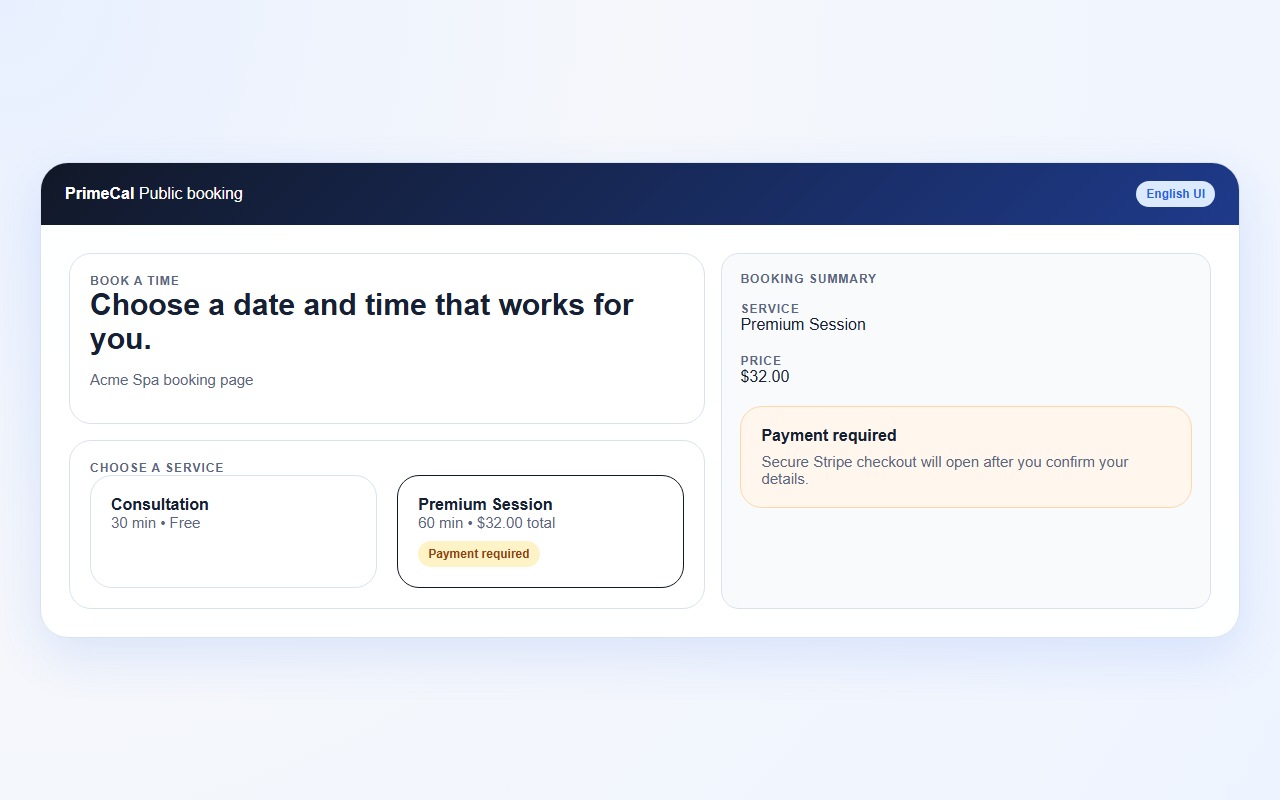
This capture should show the public booking page in English with the service selector, date selector, and translated summary panel visible.
Hungarian booking details form
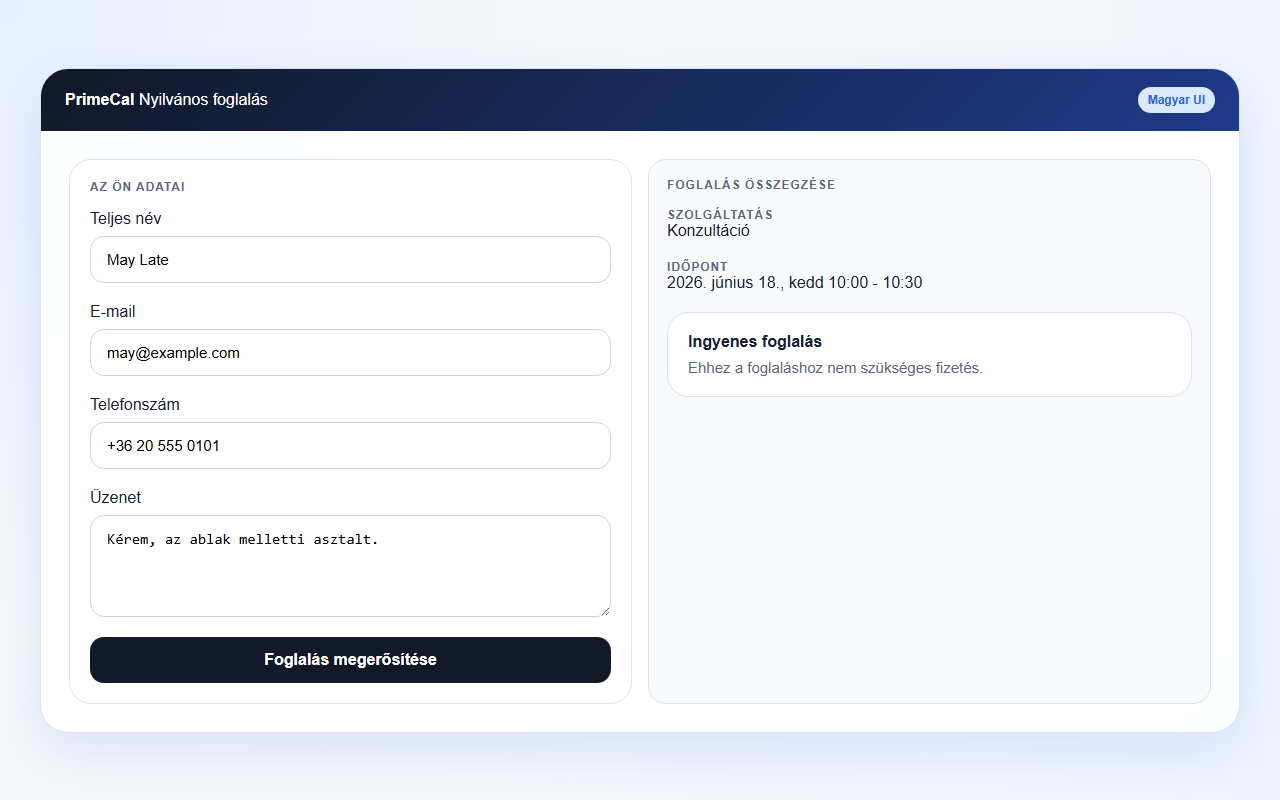
Use the Hungarian locale to confirm that longer labels still fit and that no raw field ids or translation keys appear on the page.
Troubleshooting
The link opens, but payment says it is unavailable
The service configuration is probably correct, but the organisation billing state is not ready. Review the Stripe connection on the Billing tab.
The public page still shows English after I switched to Hungarian
Check the browser language, stored app language preference, or the explicit language switcher if your workspace exposes one. PrimeCal should fall back to English only when a localized string is intentionally missing.
Custom customer fields look like backend ids
PrimeCal now humanizes unknown customer field ids on the public page. If a field still looks too technical, rename it at the source configuration level or add a dedicated localized label.