Profile Page
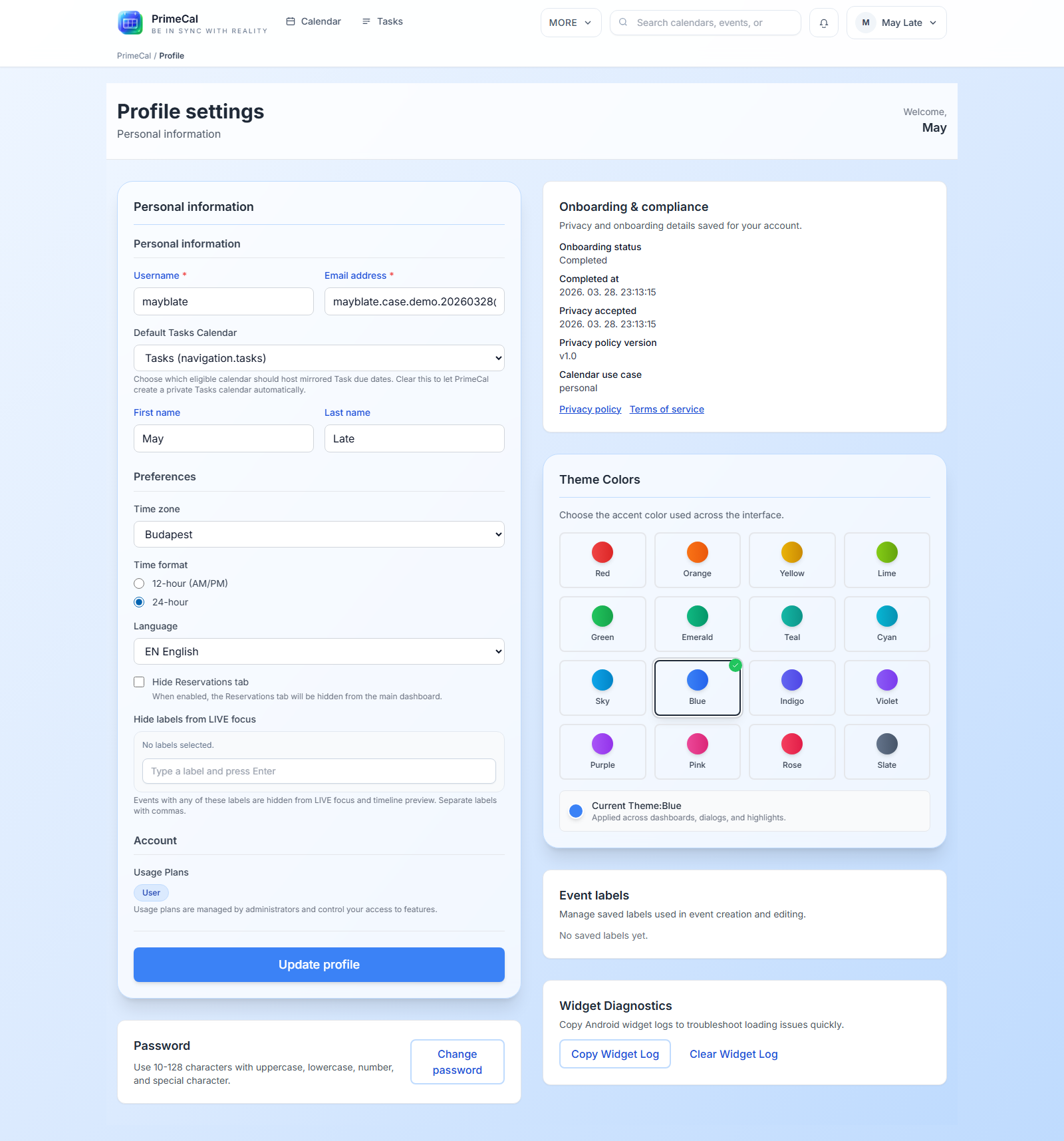
The Profile page is the control center for your account identity, localization, appearance, labels, and Focus behavior.
How To Open It
- Open the main workspace.
- Open your user menu.
- Select
Profile.
Main Areas On The Page
| Area | What you control | Why it matters |
|---|---|---|
| Identity | Username, email, first name, last name, profile image | These details shape how you appear in PrimeCal. |
| Locale | Language, timezone, time format, week start | These settings influence every calendar and task date you read. |
| Calendar defaults | Default tasks calendar and visibility preferences | Useful when you work with several calendars at once. |
| Event labels | Reusable event tags | Makes it faster to classify events and build Focus filters. |
| Focus settings | Hidden live Focus labels and no-focus behavior | Helps you quiet the live Focus view without hiding the same items everywhere else. |
| Workspace layout | Boxed vs full-width mode, sidebar collapse, sidebar width | Lets you tune how dense the calendar workspace feels on large screens. |
| Security | Password change | Keeps account access under your control. |
| Appearance | Theme color and visual preferences | Keeps the workspace readable and consistent. |
Password Visibility Toggle During Registration
When a new user creates an account, the password field now includes a show/hide toggle.
This helps with:
- avoiding typing mistakes on long passwords
- keeping the control keyboard-accessible
- preserving secure defaults, because the password stays hidden until the user explicitly reveals it
PrimeCal does not store anything extra when the password is shown. The toggle only changes how the current field is rendered on screen.
Focus-Specific Settings
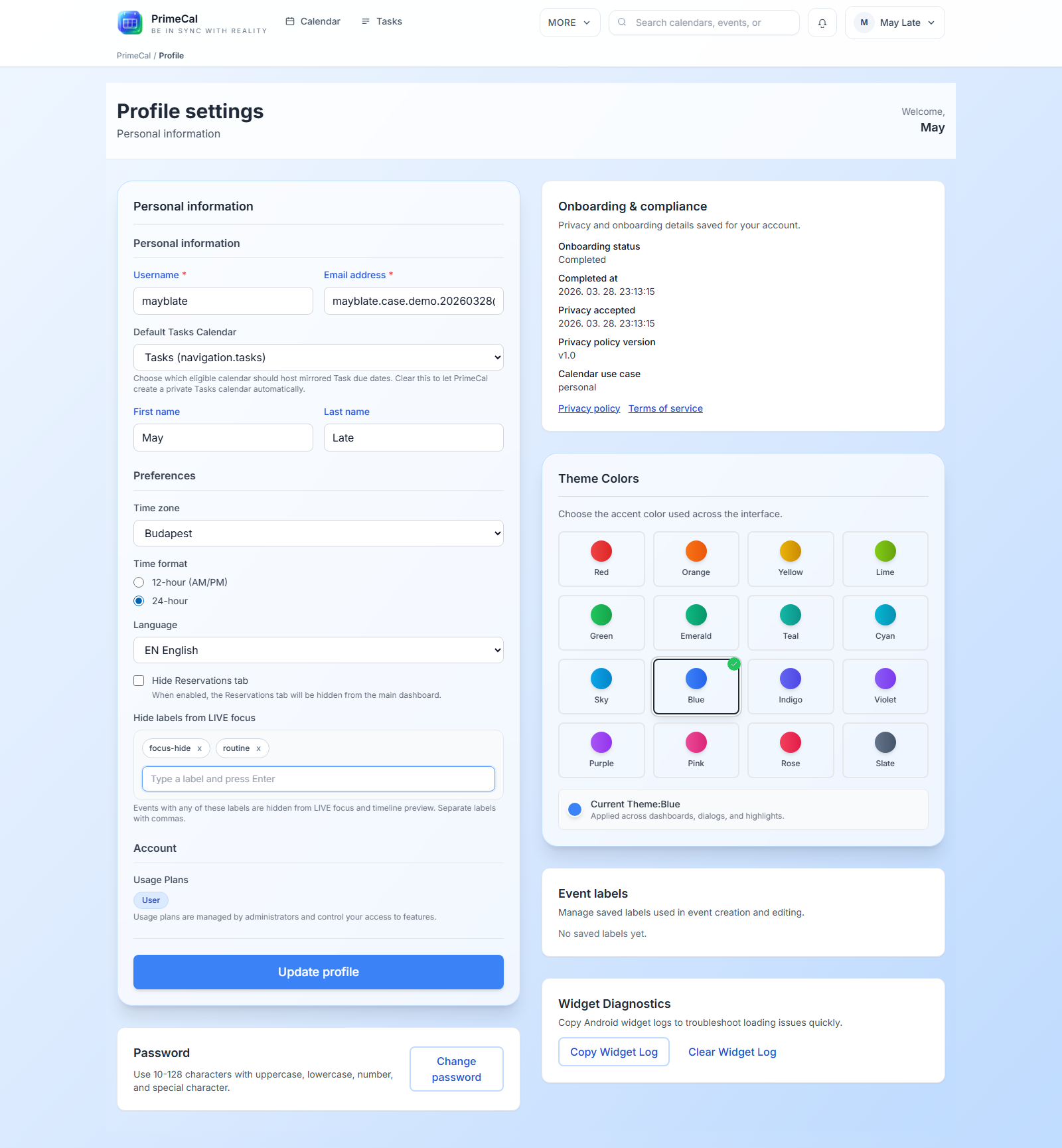
The most important Focus option is the list of labels hidden from the live Focus view.
- Events with those labels remain on the calendar.
- They still appear in Month and Week view unless you hide their calendar.
- The filter is useful for background items such as errands, admin work, or passive reminders.
Workspace Layout Preferences
The profile also stores your calendar workspace layout choices:
Boxedorfull widthworkspace mode.- Whether the sidebar is collapsed.
- The last expanded sidebar width on desktop.
These preferences are saved with your profile, so they follow you when you sign in from another browser or device. On mobile, the app may ignore the saved sidebar width if the drawer layout is the better fit.
Good Profile Habits
- Set the timezone before you create important events.
- Keep event labels short and reusable so they stay easy to filter.
- Use hidden Focus labels sparingly. Too many filters can make the live view confusing.
- Review your profile again after you build a few calendars and routines.
Related Pages
Developer Reference
For the backend profile contracts, use the User API.