External Sync
External Sync lets you connect PrimeCal to supported external calendar providers, add more than one account when your plan allows it, and decide which calendars stay linked.
How To Open It
- Open
More. - Select
External Sync.
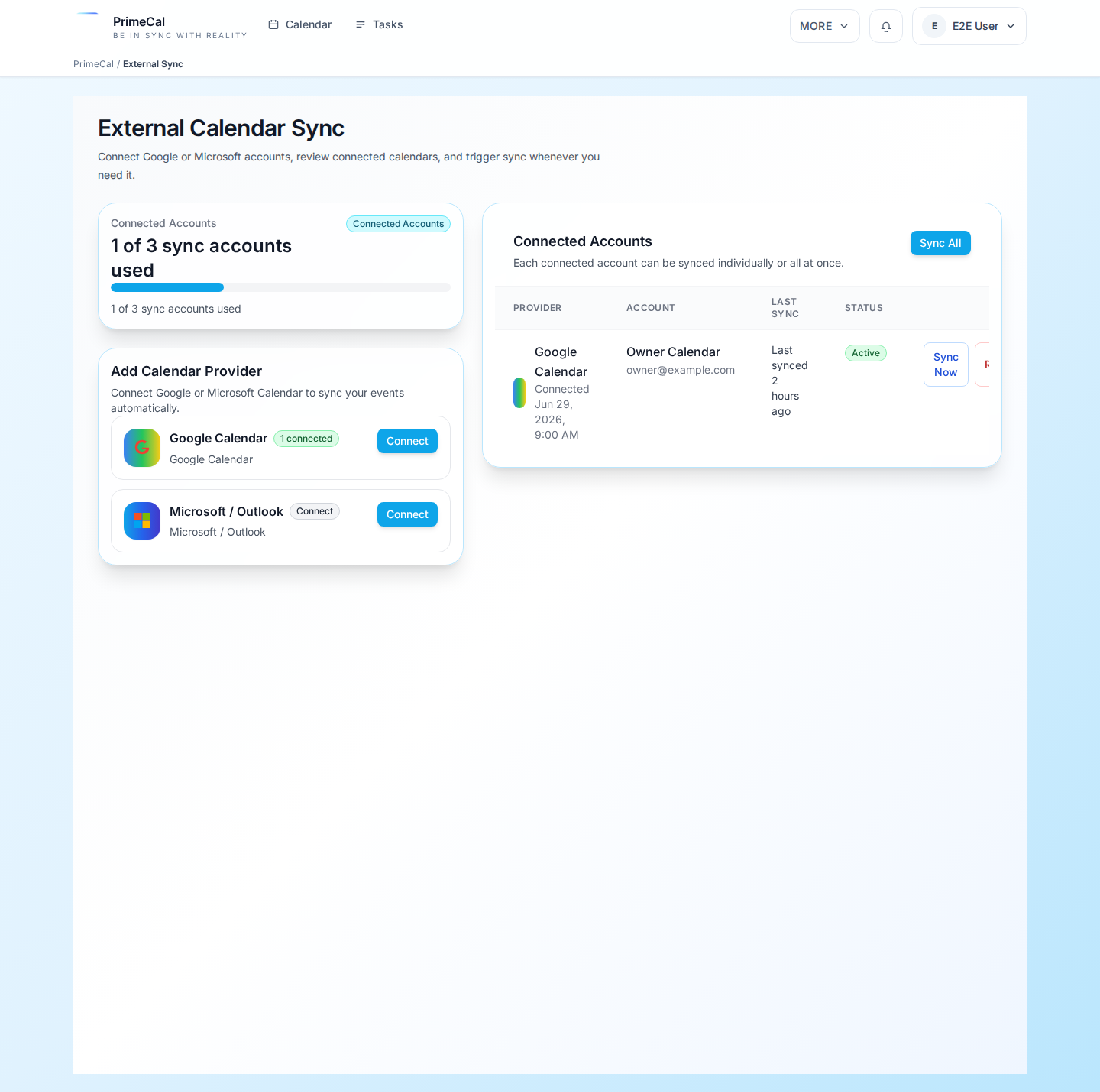
Multi-Account Overview
PrimeCal now supports multiple external calendar accounts per user. That means you can connect separate Google or Microsoft accounts, keep work and personal calendars apart, and manage each connection from the same sync page.
Each account has its own OAuth connection and calendar mappings. You can review connected accounts, add another account, or disconnect one account without affecting the rest.
Typical Setup Flow
- Choose a provider such as Google or Microsoft.
- Start the connection flow from the sync screen.
- Return to PrimeCal after the provider confirms access.
- Select the calendars you want to sync.
- Decide whether each connection should stay two-way.
- Optionally check "Also import reminders from this calendar" to bring over each event's alert time from Google or Outlook.
- Save the mapping.
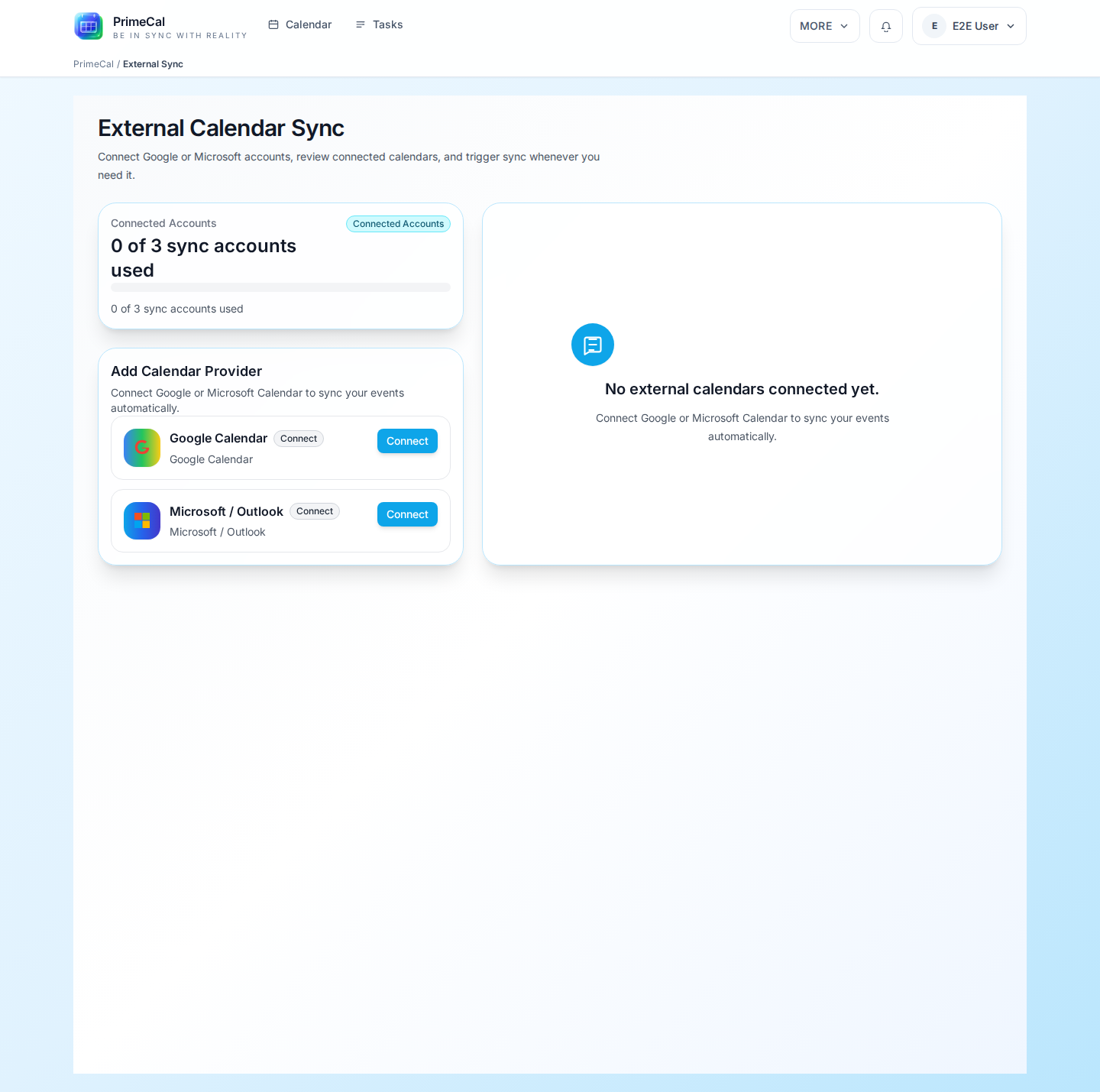
Subscription Limits
The number of connected external accounts is plan-limited.
- Free plans should expect a lower account limit.
- Paid plans can allow a higher limit.
- The exact cap is configurable through subscription settings, so the visible limit may differ by deployment.
When you hit the limit, PrimeCal should show a seat or account-limit message instead of starting another OAuth flow.
What To Decide Carefully
| Decision | Why it matters |
|---|---|
| Which calendars to connect | Not every external calendar belongs in PrimeCal |
| Two-way sync | Useful when both systems must stay current |
| Import reminders | Off by default so manually-set PrimeCal reminders on existing events are never overwritten; turn it on to keep alert times from Google/Outlook |
| Which rules to trigger | Helpful when imported items should kick off automation |
Security Notes
- OAuth is still the only way to add a provider account, so PrimeCal never asks you to paste provider passwords into the app.
- Access tokens are stored encrypted on the backend.
- Refresh flows stay on the server side, which keeps provider credentials out of the browser and reduces exposure during reconnects.
When To Disconnect Or Reconnect
- a provider account changed
- the wrong calendars were linked
- sync looks stale and you want a clean restart
- you want to reduce what external systems can write back
Best Practices
- Start with one or two calendars, not everything at once.
- Use automation only after the basic sync result looks correct.
- Recheck titles, colors, and recurring items after the first sync.
- Disconnect cleanly before reconnecting a provider with a different account.
Developer Reference
For OAuth, mapping payloads, multi-account account creation, and force-sync behavior, use the External Sync API.
Admin Guide
Administrators can control the per-user external sync account cap with max_calendar_sync_accounts.
- Open the subscription or plan settings in the admin area.
- Find the
max_calendar_sync_accountslimit. - Set the maximum number of external calendar accounts each user can connect.
- Save the plan and re-sync subscriptions if your admin workflow requires it.
Use a lower number for free or trial tiers and a higher number for paid tiers. If your deployment exposes multiple subscription levels, keep this value aligned with the intended account quota for each plan.