Google Calendar Sync
Connecting Google Calendar to PrimeCal imports your Google events into PrimeCal so you can see everything in one place. Your Google Meet invites, personal appointments, and any other events from Google Calendar appear alongside your PrimeCal events — no more switching between two apps.
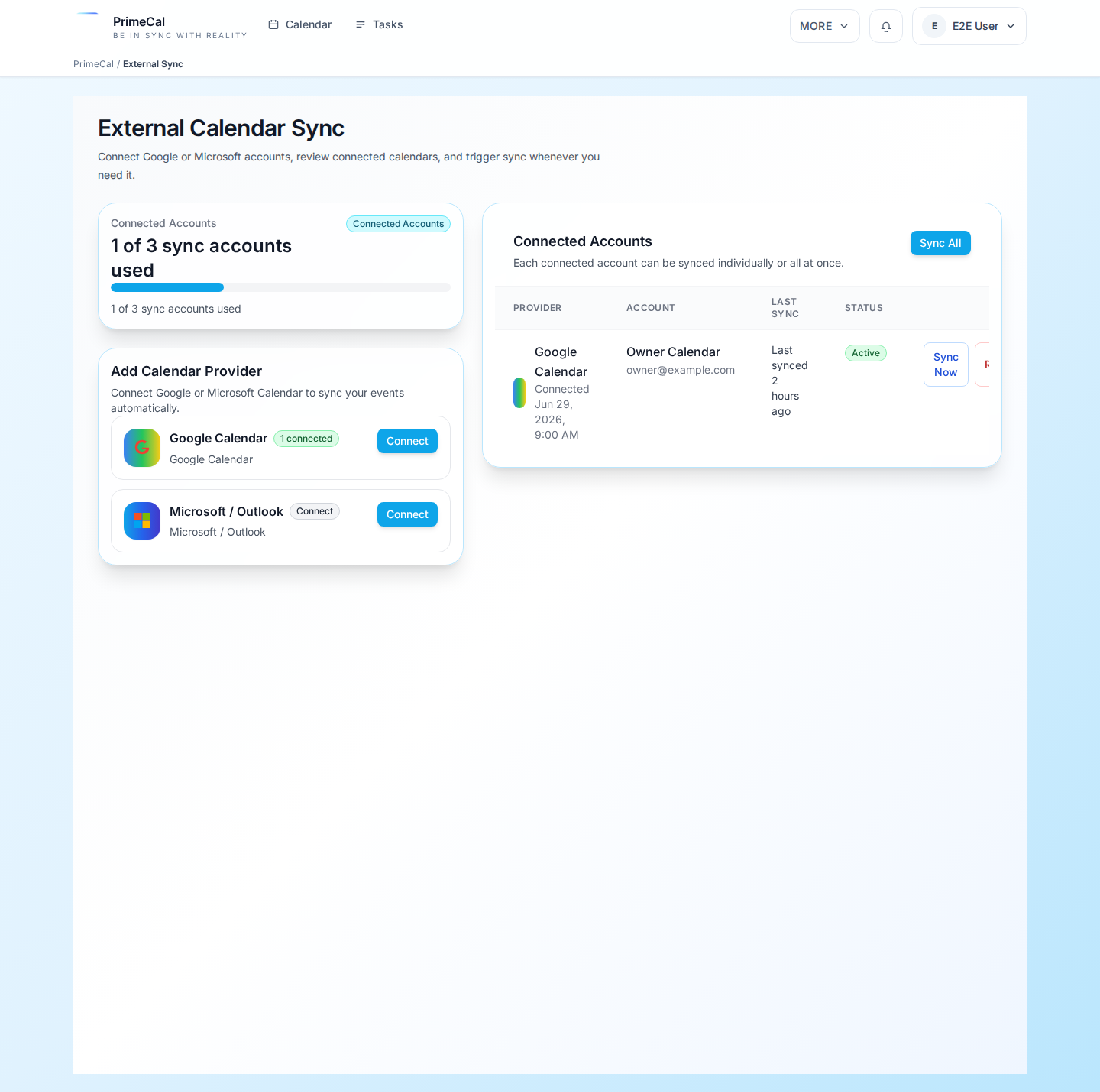
What sync does
- Events from your connected Google Calendar appear in your PrimeCal month, week, and day views.
- A small sync indicator shows which events came from Google.
- Sync runs automatically in the background every few minutes.
- You can trigger a manual refresh at any time.
In read-only sync mode, edits must be made in Google Calendar — the changes will then sync back to PrimeCal. Depending on your plan, write-back (editing from PrimeCal) may also be available.
Connect your Google account
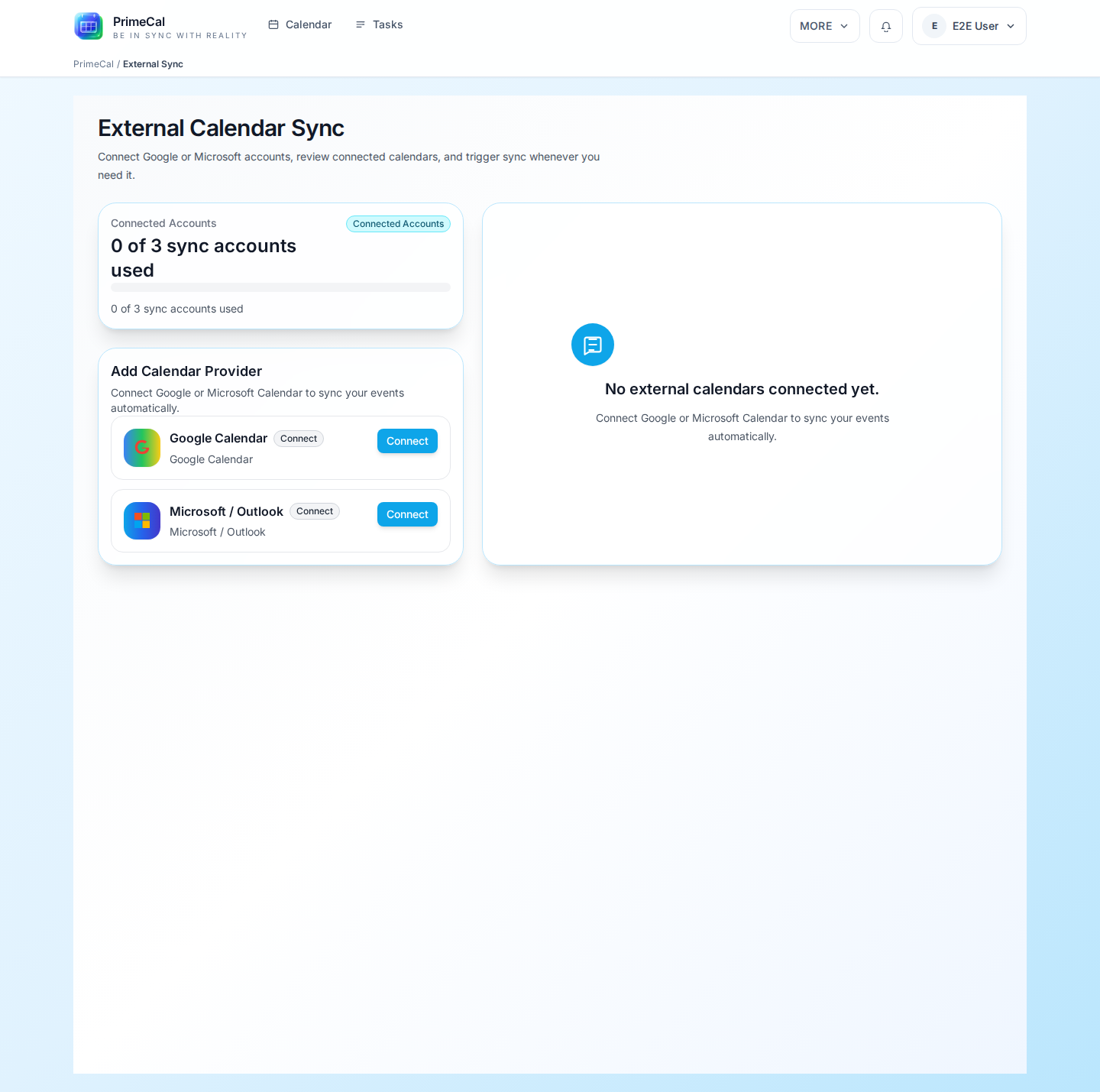
- Open Settings (gear icon or your profile menu).
- Select Calendar Sync.
- Click Add Account.
- Choose Google.
- You are redirected to Google's sign-in page. Sign in with the Google account whose calendar you want to sync.
- Google will ask you to authorize PrimeCal to access your calendar. Review the permissions and click Allow.
- You are redirected back to PrimeCal. Your Google account now appears in the Calendar Sync list.
After connecting, PrimeCal performs an initial sync. Depending on how many events you have, this may take a minute. Once complete, your Google events appear in your PrimeCal views.
What to authorize
Google asks for permission to read your calendar data. PrimeCal requests:
- Read access: to import your events into PrimeCal.
- Write access (optional, for two-way sync): to update events from PrimeCal back to Google.
You can grant read-only access if you prefer a one-way import.
PrimeCal only accesses your calendar data. It does not read your Gmail, contacts, Drive files, or any other Google data.
After connecting
Once your Google account is connected:
- Your Google calendars appear as sync sources in the Calendar Sync settings. You can choose which calendars to include.
- Events from selected Google calendars appear in PrimeCal tagged with a Google sync indicator.
- The sync runs automatically every few minutes. Pull-to-refresh is also available on mobile.
Manual refresh
If you need the latest events immediately (for example, someone just sent you a calendar invite in Google):
- Go to Settings → Calendar Sync.
- Find your Google account in the list.
- Click Sync now or Refresh.
Editing synced events
- In read-only mode: make edits in Google Calendar and wait for the next sync (or trigger a manual refresh). The changes appear in PrimeCal.
- In write mode: you can edit events directly in PrimeCal and the changes sync back to Google Calendar.
Events created in PrimeCal's own calendars are not pushed to Google unless you have write-back configured.
Plan limits
The Free plan supports one external sync account total (across all providers — Google and Microsoft combined). If you've already connected a Microsoft account, you'll need to upgrade your plan to add a Google account as well.
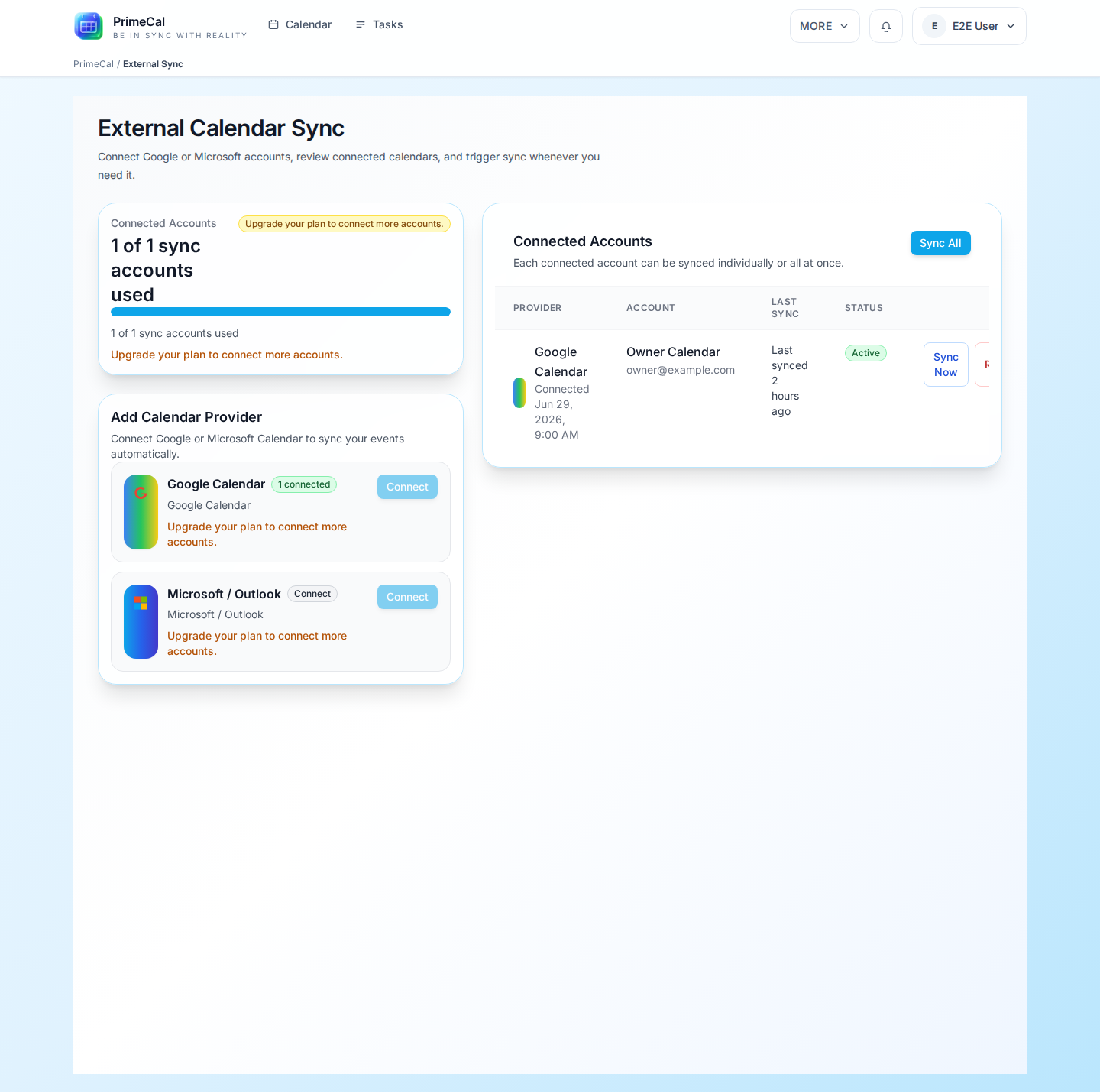
Paid plans allow multiple external accounts. Check your plan details in Settings → Subscription.
Example: Will's work setup
Jordan Example (jordan_example) is an AI engineer. He connects his work Google Calendar to PrimeCal so that his Google Meet invites and work meetings appear in PrimeCal alongside the "Example Family" shared calendar. In his PrimeCal week view, he can see a 10am team standup (from Google) on the same day as "Soccer practice pickup — 4pm" (from Example Family) without opening two apps.
Disconnect Google Calendar
To stop syncing a Google account:
- Go to Settings → Calendar Sync.
- Find your Google account in the list.
- Click Disconnect (or the remove icon).
- Confirm the disconnection.
The Google events are removed from PrimeCal. Your Google Calendar itself is unaffected — nothing is deleted from Google.
Troubleshooting
Events aren't showing up after connecting: trigger a manual refresh. If that doesn't help, check that you authorized the correct Google account and that the Google calendars you want are selected in the sync settings.
Authorization expired: Google OAuth tokens can expire. If sync stops working, go to Calendar Sync settings and reconnect your Google account.
Google Calendar API error: If you see an error about the API being disabled or access not being configured, contact support — this is not something you can fix from your account settings.
Related topics
- Microsoft 365 Sync — connect Outlook or Office 365 Calendar
- Apple Calendar and CalDAV — why CalDAV isn't supported and what to do instead
- Calendar Subscriptions — subscribe to public
.icsfeeds