Microsoft 365 / Outlook Calendar Sync
Connecting a Microsoft account syncs your Outlook or Office 365 Calendar events into PrimeCal. Teams meeting invites, work appointments, and any other Outlook events appear alongside your PrimeCal events so you have a single view of your schedule.
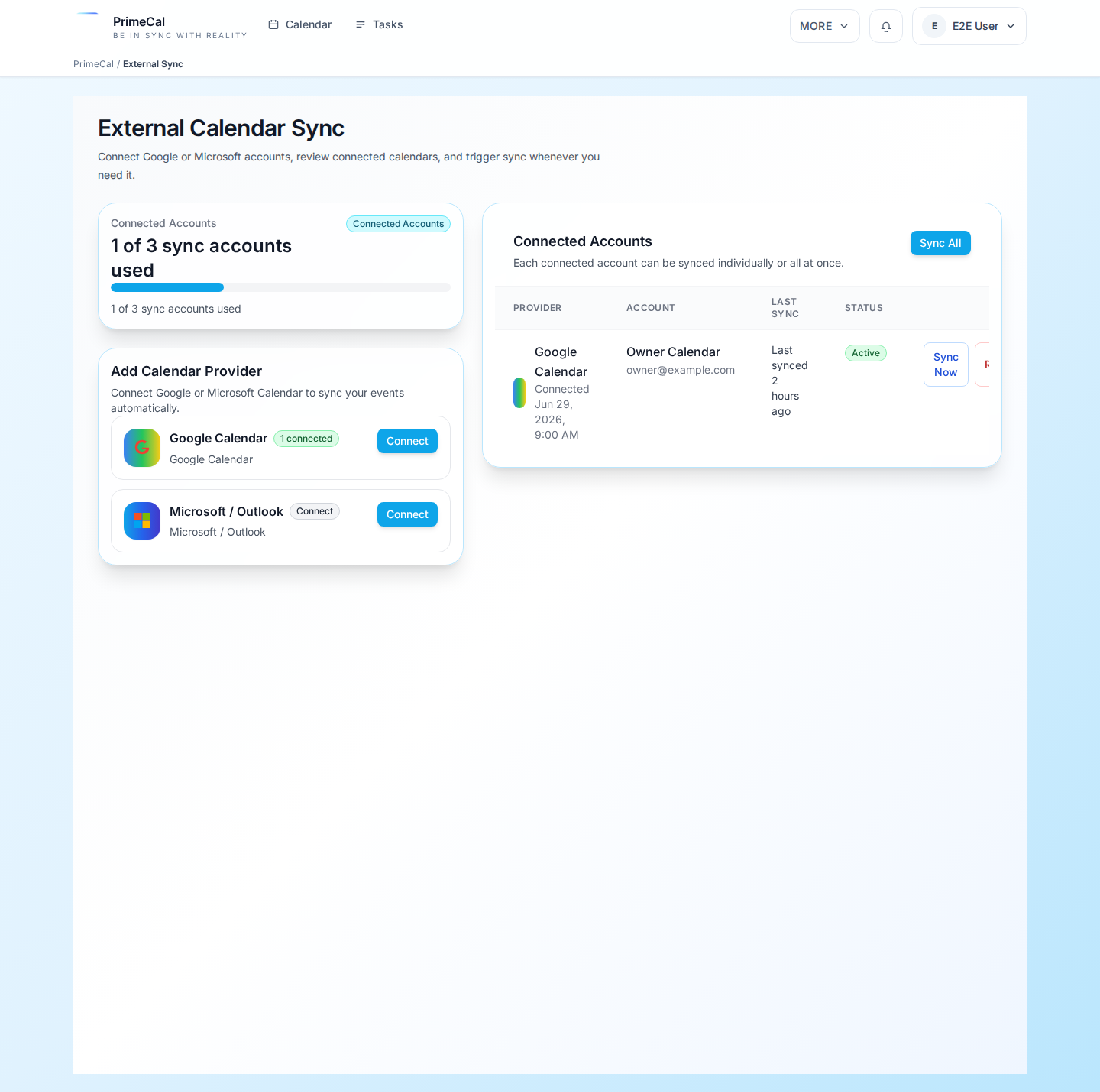
What sync does
- Events from your connected Outlook or Office 365 calendar appear in PrimeCal's month, week, and day views.
- A sync indicator shows which events came from Microsoft.
- Sync runs automatically in the background and can be refreshed manually.
- Teams meeting links embedded in Outlook events carry over, so you can join directly from PrimeCal.
Connect your Microsoft account
- Open Settings (gear icon or your profile menu).
- Select Calendar Sync.
- Click Add Account.
- Choose Microsoft.
- You are redirected to Microsoft's sign-in page. Sign in with your Microsoft account (personal, work, or school).
- Microsoft will ask you to authorize PrimeCal. The permission requested is Calendars.Read (read-only) or Calendars.ReadWrite (for two-way sync). Review and click Accept.
- You are returned to PrimeCal. Your Microsoft account appears in the Calendar Sync list.
PrimeCal performs an initial sync immediately. Depending on how many events are in your Outlook calendar, this may take a minute or two.
Permissions explained
PrimeCal uses the Microsoft Graph API and requests calendar permissions only:
- Calendars.Read: required to import your events into PrimeCal (one-way sync).
- Calendars.ReadWrite: required if you want to edit Outlook events from within PrimeCal (two-way sync).
PrimeCal does not access your email, contacts, OneDrive, or Teams chats.
Multiple Microsoft accounts
You can connect more than one Microsoft account — for example, a personal Outlook.com account and a work Office 365 account. Each account appears separately in the Calendar Sync list, and you can manage their sync settings independently.
Plan limits apply. The Free plan supports one external sync account total across all providers. If you need to connect both a personal and a work Microsoft account, you'll need a paid plan. Check your limits in Settings → Subscription.
After connecting
Once connected:
- Select which Microsoft calendars to include. Most accounts have a primary calendar plus shared calendars.
- Events from selected calendars appear in PrimeCal tagged with a Microsoft sync indicator.
- Teams meeting links in Outlook events are preserved in PrimeCal's event details.
Manual refresh
To pull the latest Outlook events immediately:
- Go to Settings → Calendar Sync.
- Find your Microsoft account.
- Click Sync now.
Editing synced events
- Read-only mode: make changes in Outlook or the Microsoft 365 calendar and let them sync to PrimeCal.
- Write mode: edit events from PrimeCal and the changes are pushed back to your Outlook calendar.
Example: Alex syncing the school calendar
Alex Example's kids' school shares the school event calendar via Outlook. Alex connects her Microsoft account to PrimeCal and selects the "School Calendar" from her Outlook. Now sports days, parent evenings, and school trips appear in PrimeCal right next to the "Example Family" events — she sees everything in one view without having to check Outlook separately.
Disconnect a Microsoft account
- Go to Settings → Calendar Sync.
- Find the Microsoft account in the list.
- Click Disconnect and confirm.
The Outlook events are removed from PrimeCal. Nothing is changed in your Outlook or Microsoft 365 account.
Troubleshooting
Events not appearing: trigger a manual refresh. If the problem persists, check that you authorized the correct Microsoft account and that the calendars you want are selected.
Authorization expired: Microsoft tokens can expire, especially for work or school accounts managed by an IT policy. Reconnect the account from Calendar Sync settings.
Work account blocked by IT policy: some organizations restrict third-party OAuth apps. Ask your IT administrator to allow PrimeCal in your organization's Azure AD app permissions.
Teams meeting links missing: if Teams links aren't showing in synced events, check that PrimeCal has access to the event body (not just metadata). This depends on the Graph API permissions granted during authorization.
Related topics
- Google Calendar Sync — connect your Google Calendar
- Microsoft Teams Integration — get calendar event notifications in Teams
- Apple Calendar and CalDAV — why CalDAV isn't supported and what to do instead