Enterprise Reservation System For End Customers
Customers use a public booking page that belongs to one organisation. The page shows the services that organisation offers, the times that are actually available, and whether booking requires payment before confirmation.
Time to complete: 5-10 minutes Difficulty: Beginner
The Public Booking Journey
Step 1: Open The Organisation Booking Link
The booking page is usually shared in a format such as /book/acme-spa.
Customers land in the correct organisation automatically because the slug is
part of the link.
Step 2: Choose A Service And Resource
Customers can:
- choose a resource type, such as
Massage roomorDining table - choose a specific resource when they care which one they get
- choose Any available when the service matters more than the exact resource
Step 3: Choose A Time Slot
PrimeCal only shows slots that survive:
- reservation conflict checks
- resource-level availability rules
- blocking events from linked staff calendars
This is why a time can disappear between services or resource selections. The availability is real, not cached marketing inventory.
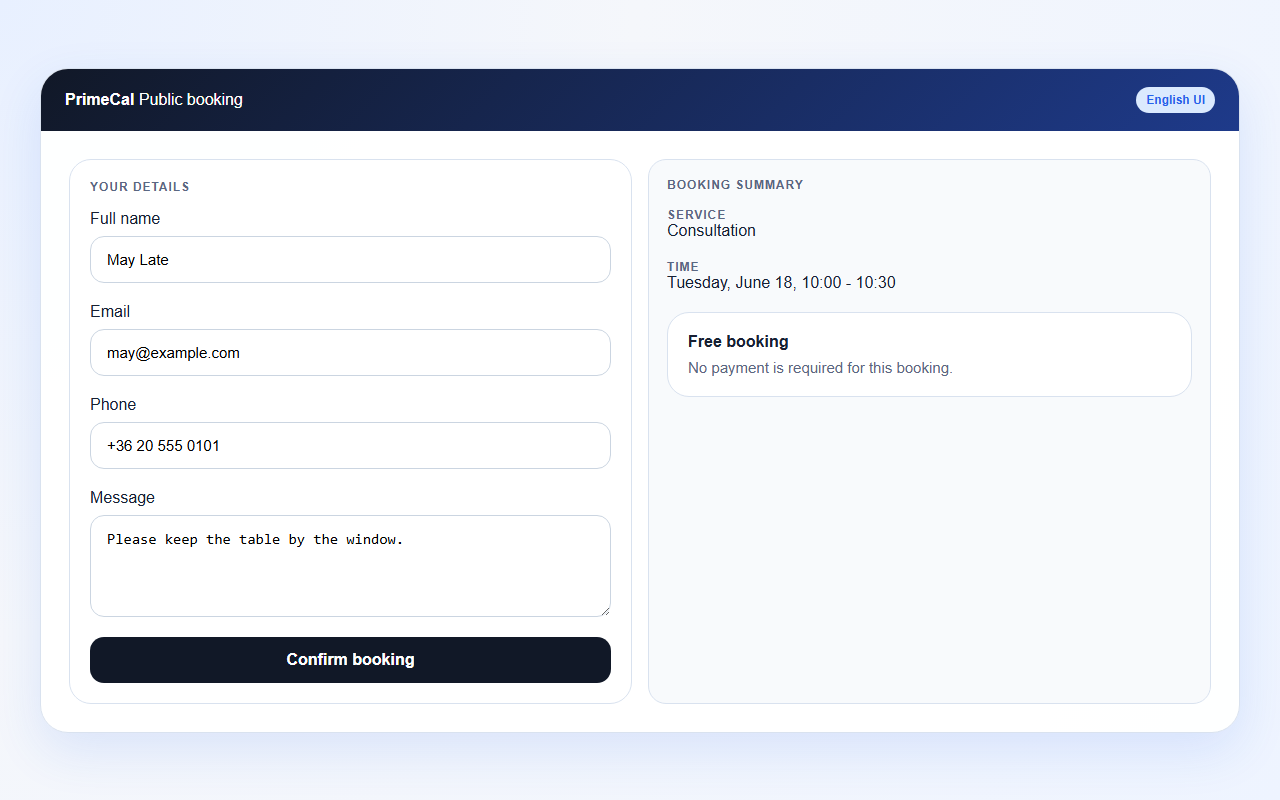
Step 4: Enter Booking Details
The form collects only the customer details needed for the booking workflow. A typical page asks for:
- name
- phone
- notes
Step 5: Pay Or Confirm
There are three common outcomes:
- Free booking: no payment is needed and the reservation confirms immediately.
- Optional payment service: pricing is visible, but payment is not required. The booking can still confirm immediately.
- Payment required: PrimeCal creates the reservation as
pending_paymentand shows a payment step before sending the customer to Stripe Checkout. The reservation becomes confirmed only after Stripe reports success.
Step 6: Review Confirmation
After success, the customer sees a confirmation page and receives any existing notifications configured in PrimeCal's notification and automation modules.
That confirmation page can now show:
- Go to my calendar as the primary next step when PrimeCal has a safe calendar destination
- Book another time as the secondary action
PrimeCal can also auto-create a customer account from the payment email when the person did not already have an account.
If payment fails or the customer closes Checkout, the booking page can return to a retryable pending-payment state instead of silently dropping the reservation.
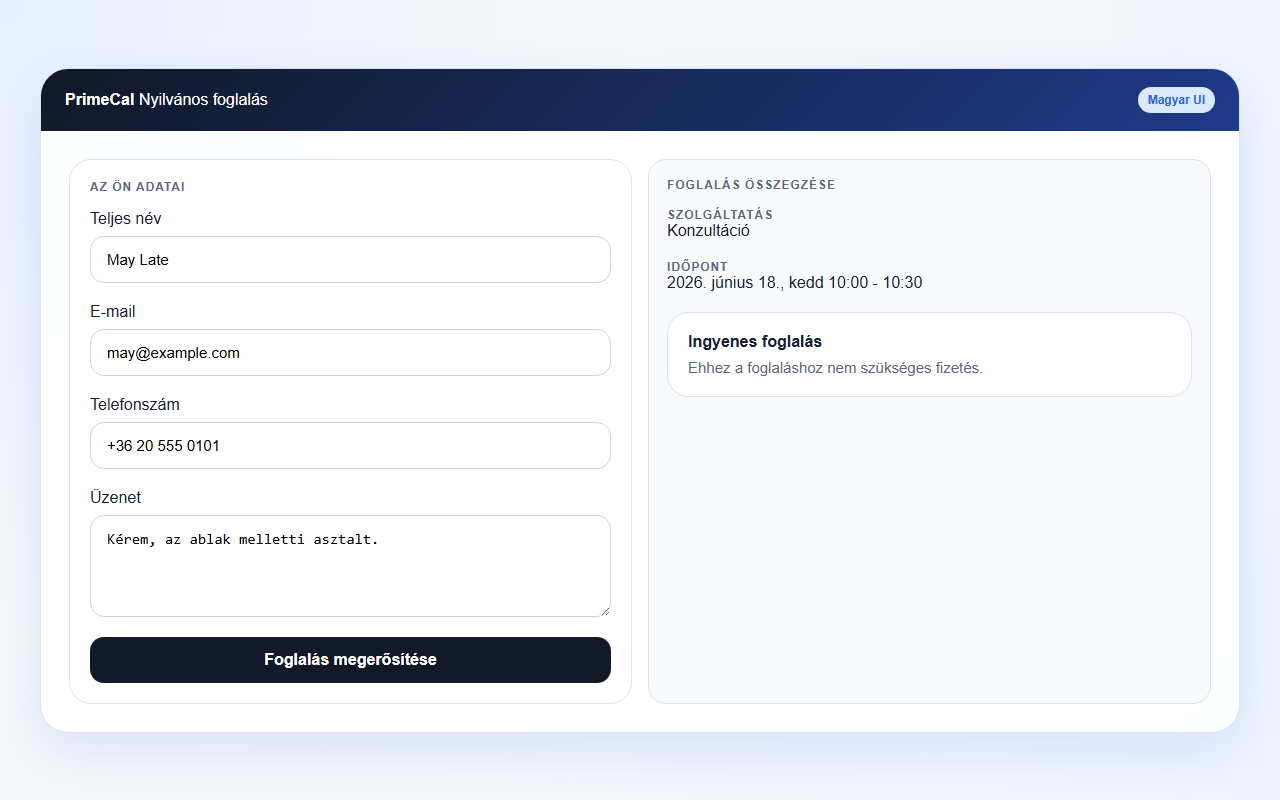
English And Hungarian UI Examples
| UI element | English | Hungarian |
|---|---|---|
| Booking page title | Book a time | Időpontfoglalás |
| Summary title | Booking summary | Foglalás összegzése |
| Payment button | Continue to secure payment | Tovább a biztonságos fizetéshez |
| Secondary action | Edit booking details | Foglalási adatok szerkesztése |
| Confirmation action | Book another time | Másik időpont foglalása |
Online Meeting Links
When a related event already contains a persisted meeting URL, PrimeCal can surface a localized join action in the calendar UI after the customer reaches their event context.
Supported meeting providers include:
- Microsoft Teams
- Zoom
- Google Meet
- Whereby
- Webex
The app now localizes the visible join label as well as the accessible
aria-label.
Screenshot References
| Step | File | Caption |
|---|---|---|
| Details form | docs/assets/user-guide/enterprise-reservation-system/customer-booking-details-form.png | Collect only the customer information needed to complete the reservation. |
| Payment step | docs/assets/user-guide/enterprise-reservation-system/customer-payment-pending-step.png | The booking page keeps the slot reserved while it asks the customer to continue to secure payment. |
| Checkout redirect | docs/assets/user-guide/enterprise-reservation-system/customer-stripe-checkout-redirect.png | Payment-required bookings leave PrimeCal briefly for Stripe Checkout and return after the result. |
| Confirmation | docs/assets/user-guide/enterprise-reservation-system/customer-payment-confirmation-actions.png | The final state should make it obvious whether the booking is confirmed and where the customer can go next. |
| Prefilled form | docs/assets/user-guide/enterprise-reservation-system/customer-prefilled-booking-form.png | Known customer details can be reused when the customer starts another reservation. |
Troubleshooting
I completed the form but the reservation is not confirmed yet
If the service requires payment, the reservation stays in pending_payment
until Stripe confirms success. Closing the checkout page early can leave the
booking incomplete.
I cannot see the time slot I saw a moment ago
Someone else may have taken it, or the slot may have become blocked by a linked staff calendar event.
The page shows a price in a currency I did not expect
Pricing comes from the organisation's resource-type configuration. Customers do not choose the currency in the public form.