Routines and Templates
A routine template is a reusable checklist — "Morning Routine," "Saturday House Cleaning" — that PrimeCal turns into real tasks for you or your household automatically. Instead of recreating the same chore list every week, you clone a template once and let PrimeCal instantiate it on a recurring schedule.
What A Routine Template Is
A routine template has:
- A name and optional description (e.g. "Saturday House Cleaning").
- A recurrence pattern — the same recurrence engine used for calendar events (daily, weekly, monthly, yearly), so a routine can repeat every Saturday just like a recurring event would.
- An "Automatically create tasks on schedule" toggle (on by default) — see Automatic vs. Manual Routines below.
- One or more items — each item becomes its own task when the routine runs, with its own title, priority, duration, and optional default assignee.
- A rotation strategy that decides who gets assigned each time the routine runs (see below).
- Optionally, a people group it belongs to, so the whole household shares one template instead of everyone maintaining their own copy.
Routines is gated separately from Tasks — a plan can include the Tasks board and Focus without Routines, or vice versa. If your plan doesn't include Routines, the Routines tab shows an upgrade prompt instead of your templates; Board and Focus are unaffected.
The System Template Library
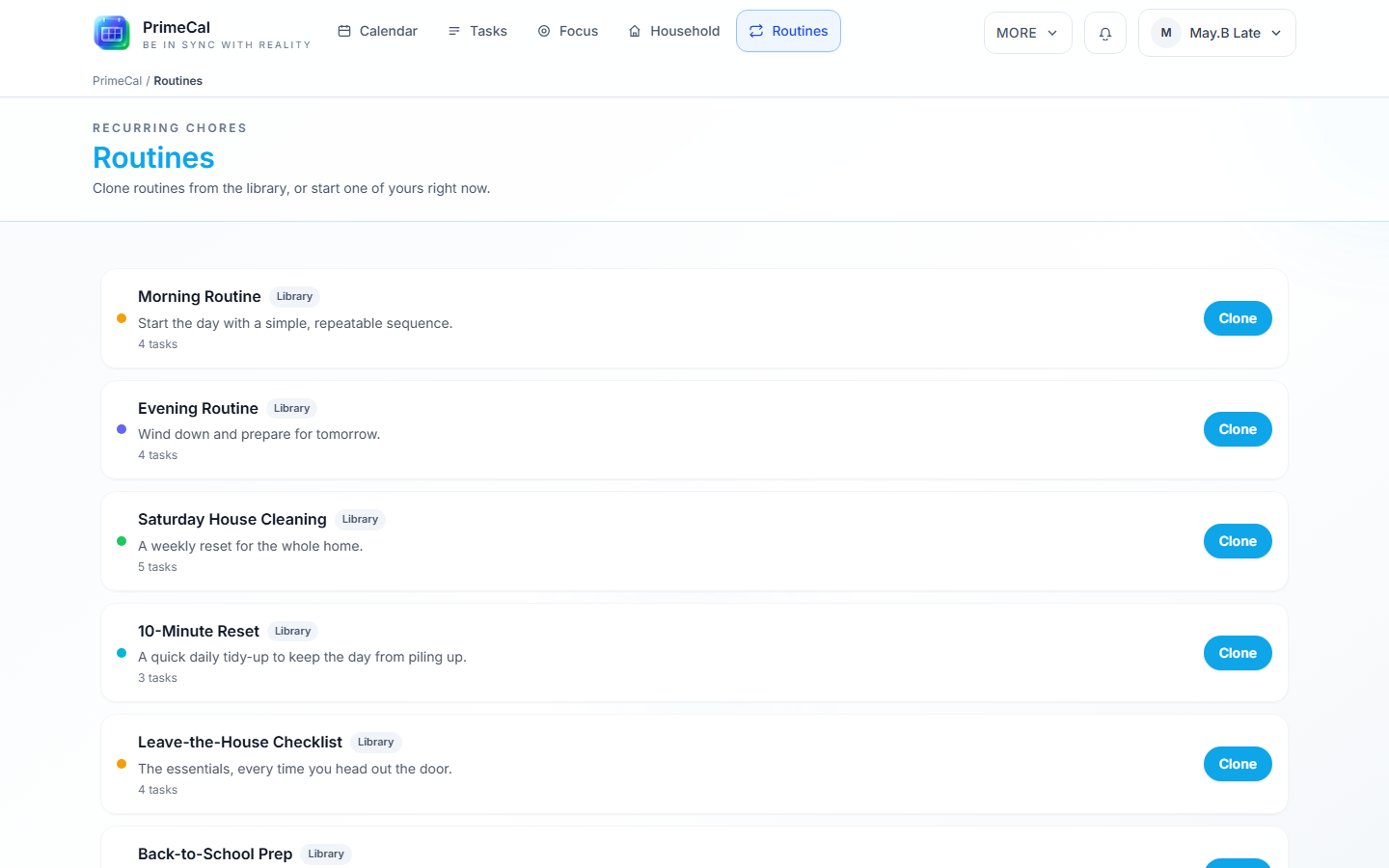
PrimeCal ships with a library of system templates you can browse and clone — you never edit a system template directly. Cloning copies the template (including its items) into your own account, or into one of your people groups, where you're free to rename it, reorder items, and change the rotation strategy.
Example: Alex Example clones the system "Saturday House Cleaning" template into the Examples' family group. The clone keeps the same checklist items but is now fully hers (and Jamie's and Riley's) to edit.
Cloning A Template
- Open the workspace, select Tasks, and switch to the Routines tab.
- Find a template in the Library section.
- Click Clone.
- Optionally choose a people group to clone it into so other group members can see and run it too.
Building A Routine From Scratch
You don't have to start from the system library — click + New routine to build one from nothing:
- Give it a name, optional description, and a color.
- Choose whether to keep it just for you or share it with a people group.
- Pick a rotation strategy (see below) — only meaningful once you've shared it with a group.
- Set a recurrence the same way you would for a recurring calendar event, or leave it as "Does not repeat" for a routine you only ever start by hand or from an automation.
- Add one or more tasks to the routine — each with its own title, priority, duration, and optional assignee.
- Click Create routine.
Example: Jamie wants a "Take out the recycling" routine that only ever runs when triggered by a smart-bin sensor automation, never on its own schedule. He builds it with recurrence set to "Does not repeat" and one task item, then wires an automation rule to instantiate it (see Smart-Home Automation).
Chore Rotation
When a routine belongs to a people group, each item can rotate who it's assigned to every time the routine runs:
| Strategy | How it picks the assignee |
|---|---|
fixed | Always the item's configured default assignee. No rotation. |
round_robin | Cycles through the group's members in a fixed order, moving to the next person each time the routine runs. |
least_recently_done | Assigns whoever in the group has gone the longest without doing this specific item. |
Example: The Examples' "Saturday House Cleaning" template uses round_robin. Every member of the group, Riley included, takes a turn in a fixed order: each run goes to the member after whoever did the previous one.
If the group has fewer than two eligible members, rotation falls back to the item's default assignee (or the template owner).
Automatic vs. Manual Routines
Every routine has an "Automatically create tasks on schedule" toggle in its editor, on by default:
- On (default): the routine's tasks are created for you every time its recurrence pattern says it's due — you never have to remember to start it.
- Off: the routine never runs on its own, no matter what its recurrence pattern says. It only ever creates tasks when you click Start now, or when an automation rule triggers it. The recurrence pattern can still be set (it's used for other bookkeeping) but is effectively ignored for automatic runs.
This is useful for routines you want to exist as a template but trigger deliberately or from an external event — e.g. a "Take out the recycling" routine you only ever want fired by a smart-bin sensor automation, or a seasonal checklist you only run when you decide it's time, never on a timer.
Turning this off doesn't hide the routine, disable "Start now," or affect rotation/streak tracking — it only skips the unattended nightly check. A "Manual only" badge appears next to the routine's name in your list so it's easy to tell at a glance which of your routines are hands-off and which need a deliberate trigger.
Three Ways A Routine Can Start
A routine template's items become real tasks in one of three ways:
1. On Its Schedule
Every active, non-system routine template with "Automatically create tasks on schedule" turned on is checked once a day. If the recurrence pattern says it's due, PrimeCal creates one task per item automatically — no action needed. Routines with that toggle off are skipped by this check entirely.
2. By Hand — "Start now"
Click Start now next to a cloned template to instantiate it immediately, independent of whether it's actually due today. This is useful when you want to run "Morning Routine" a little early, or re-run "Saturday House Cleaning" mid-week because guests are coming over.
You can reach the same "Start now" list from several places — the Routines tab itself, the ▶ Start a routine button on the Board tab, and the Calendar page — they all open the exact same picker, so there's only one "start a routine" experience to learn regardless of where you launch it from.
3. Via Automation
An automation rule can instantiate a routine on demand from any trigger — for example, a webhook from a smart alarm clock instantiating "Morning Routine" the moment it goes off. See Smart-Home Automation for the full walkthrough and an example actionConfig.
All three paths create the same kind of tasks and update the same fairness history — "Start now" and automation-triggered runs simply don't wait for the daily schedule check.
Skipping A Single Occurrence
Sometimes a routine shouldn't run this one time — you're travelling, the household is away, or it just doesn't apply this week. Click Skip today on an owned routine to mark today's occurrence as handled without creating any tasks. Rotation history is untouched, so the next real run picks up exactly where it left off.
Example: The Examples are away for a long weekend. Alex clicks Skip today on "Saturday House Cleaning" so it doesn't create tasks (and clutter Focus) while no one's home to do them — next Saturday's run still rotates to whoever's turn it normally would have been.
Completion Streaks
Once a routine has been completed at least once, its card shows a 🔥 streak badge — how many times in a row every task from a run was fully finished. Hovering the badge shows your longest streak ever for that routine. A single incomplete task in a run breaks the streak for that occurrence, so a streak is a genuine "did we actually finish this every time" signal, not just "did the routine run."
Example: The Examples have completed every item of "Morning Routine" for 6 days straight — the card shows "🔥 6 in a row." On day 7, one item is left undone; the streak resets to 0 the next time the routine runs, but the longest-streak record (6) stays visible.
The Fairness View
For routines shared inside a people group, PrimeCal tracks how many times each item was assigned to each person and how many of those were actually completed, over a window you choose (7, 30 or 90 days). This is meant to make it easy to spot when chores have quietly become lopsided.
Open the Routines tab to see a fairness card for each shared routine's group — a bar per member showing how many items they were assigned and how many they completed in the chosen window. A member who has left the group still shows up by name if known, or a placeholder if not, since the history is still real. It is not available as an MCP tool. The same data is also readable directly through the GET /api/routine-templates/fairness?groupId=X endpoint — see the Routine Templates API for the exact request and response shape.
See Also
- Focus and Scheduling — where routine-instantiated tasks show up today
- Household Inventory — the other new sibling view, for shared household items
- Smart-Home Automation — starting a routine from a trigger other than its own schedule
- Routine Templates API — full endpoint reference