Focus and Scheduling
Focus is the second tab of the Tasks hub, next to Board and Routines. It answers one question: "what's actually on my plate today?"
PrimeCal already has a compact calendar rendering mode also called "Focus view" (alongside Month and Week — see Calendar Views and Focus Mode And Live Focus). That's a way of displaying your calendar. The Focus tab described on this page is a different, Tasks-area concept: a daily list of routine and due tasks.
The Focus List
Focus combines two sources into a single, schedule-ordered list for a given day:
- Tasks created by a routine template for that day (see Routines and Templates).
- Any other task whose due date falls on that day.
Completed tasks drop out immediately, and a task with an unfinished dependency is hidden until that dependency is done (see Dependencies below).
Example: Jamie Example opens Focus this morning. "Defrost chicken" isn't there yet — it's still blocked by nothing — but "Cook dinner," which depends on it, is nowhere to be seen until Defrost chicken is checked off.
Choosing Your Focus Experience
What the Focus tab looks like now follows your Experience Mode instead of a separate manual setting — Production mode gives you Standard, Focus mode gives you Simplified. See Tasks Workspace for the full explanation of what changed.
Simplified mode
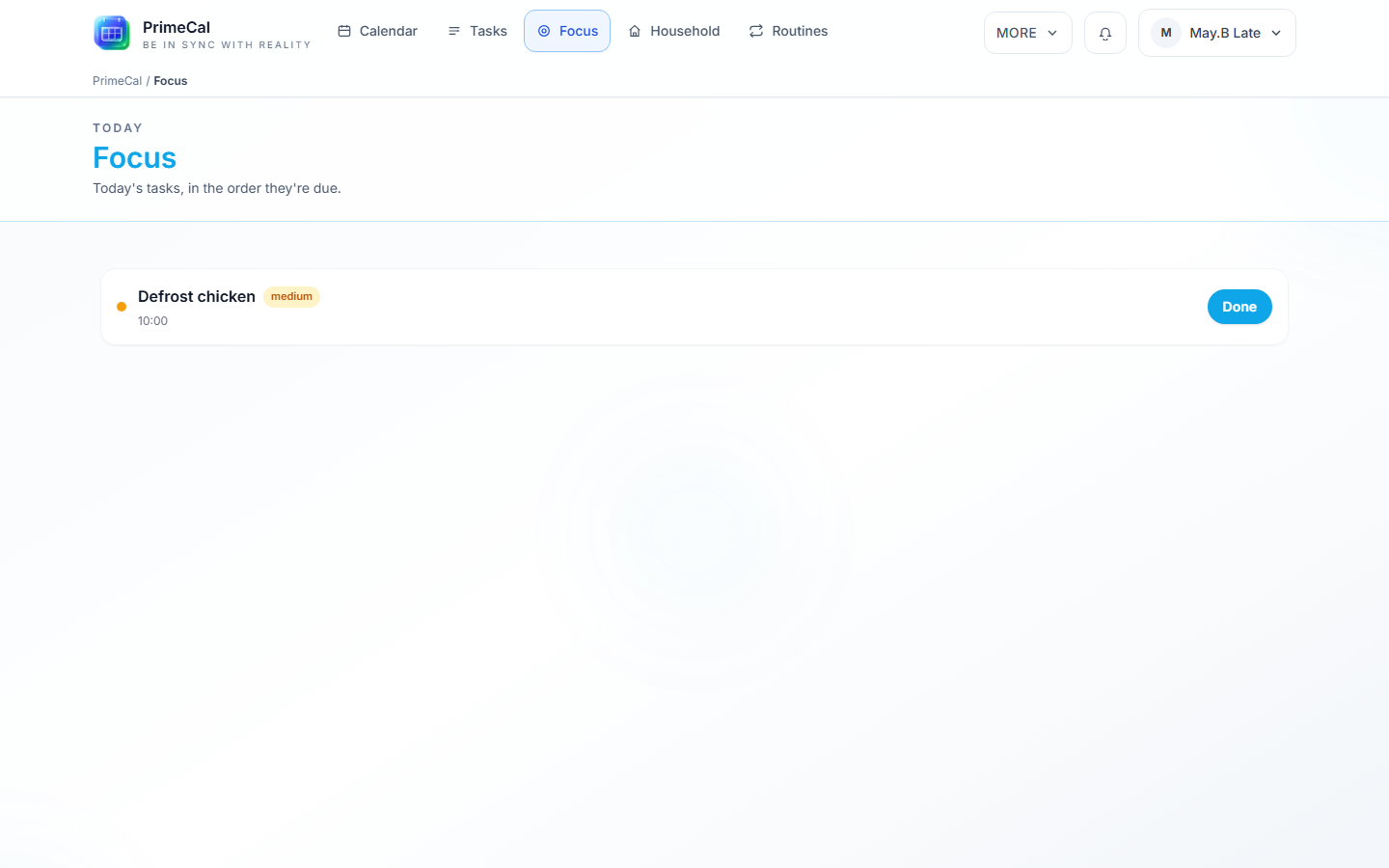
Focus shows exactly one task at a time — the next thing due — as a single large card with its title, due time, and one big Done button. There's no priority badge, no visible count of what's left, and no timer. Tapping Done completes the task and the next one (if any) takes its place. This is deliberately calm: a visible backlog counter or a running clock can itself be a source of stress, so simplified mode leaves both out.
If a task is delegated to you and still needs your confirmation, small Accept / Bounce links appear under the card — otherwise you'll only ever see the task and the Done button.
Standard mode
Focus shows the full schedule-ordered list (title, priority badge, catch-up badge if a task missed its auto-scheduled slot, due/duration/assignee line, and per-row Accept/Bounce/Done buttons), plus a Focus Session timer panel above the list.
Focus Sessions
A Focus Session is an optional Pomodoro-style timer you can run against any task in your Focus list — available in Standard mode only (Simplified mode is intentionally timer-free).
- Click Start a focus session, pick a task (it defaults to whatever's next in your list), and optionally pick a planned length (e.g. 25 minutes) or leave it open-ended.
- While a session is running you can Pause and Resume it — the elapsed time is tracked on the server, so pausing and resuming (or even reloading the page) never loses time.
- Click Complete when you're done — there's a checkbox to also mark the linked task as Done in the same action. Click Abandon instead if you're stopping without finishing (a quick confirmation prevents accidental taps).
- Every finished session (completed or abandoned) appears in Session history, with its date, task, duration, and outcome.
Sessions are never auto-completed or auto-abandoned — if you leave one running, it's simply waiting for you the next time you open Focus in standard mode. You can only have one active or paused session at a time; starting a new one first requires finishing or abandoning the current one.
Example: Alex starts a 25-minute Focus Session on "Write school newsletter." She gets pulled away after 12 minutes and pauses it. Twenty minutes later she resumes — the timer picks up from 12 minutes elapsed, not from zero — and completes the session with "also mark task done" checked once she's finished.
Auto-Scheduling
Some tasks aren't tied to a specific time — they just need to happen sometime today or this week, in a free gap in your calendar. Auto-scheduling finds that gap for you.
To auto-schedule a task, it needs a duration (in minutes). From there:
- PrimeCal looks at your existing calendar events and other scheduled tasks to find busy time.
- It searches your preferred window (default 9:00–18:00, or a custom window you set on the task) for the first gap long enough for the task.
- It writes the task's due date/time to that slot.
Two optional preferences make the search smarter:
- Priority — a
highpriority task searches further ahead (up to 14 days) and, as a last resort, can spill a couple of hours outside your preferred window. Alowpriority task only searches 5 days ahead. - Context — tagging a task
deep_workmakes the scheduler prefer a noticeably roomier gap (at least 1.5× the task's duration) before falling back to an exact-fit slot. Other context tags (errand,admin,kid_safe,low_energy) are available for your own filtering and future scheduling preferences.
Example: Alex Example creates a task "Write school newsletter," sets durationMinutes: 90 and context: deep_work, and lets PrimeCal auto-schedule it. It looks for a 135-minute-or-larger gap first, and only settles for an exact 90-minute gap if nothing roomier is free within the search window.
If a calendar event later gets created or moved into an auto-scheduled task's slot, PrimeCal automatically reflows the task to the next open gap rather than leaving it double-booked.
Delegation: Accept and Bounce
Assigning a task to someone else in your household or team doesn't just move it onto their list silently — they can confirm or decline it:
- Accept — the assignee confirms they'll do it. The task's assignment status moves from
assignedtoaccepted. - Bounce — the assignee sends it back unassigned, optionally with a short reason. PrimeCal doesn't automatically reassign it or notify anyone else — it's simply available to hand off again.
Example: "Take out the recycling" was assigned to Riley Example. Riley bounces it back with the reason "Forgot which bin is recycling this week." The task is now unassigned again (assignmentStatus: bounced_back) and shows up as needing a new assignee — Alex can reassign it to Jamie or take it herself.
Only the current assignee can accept or bounce their own assignment.
Dependencies
A task can depend on another task being finished first. While the dependency is incomplete, the dependent task is hidden from Focus — it simply isn't something you can act on yet.
Example: "Cook dinner" (assigned to Jamie) depends on "Defrost chicken." Until Defrost chicken is marked done, Cook dinner won't appear in Jamie's Focus list, even if its due date is today. As soon as Defrost chicken is completed, Cook dinner appears normally.
Dependencies are deliberately simple: a task can't depend on itself, and PrimeCal blocks the most obvious cycle (two tasks depending directly on each other), but it doesn't check longer dependency chains for cycles. Keep dependency chains short and easy to reason about.
See Also
- Routines and Templates — where the tasks that show up in Focus often come from
- Tasks Workspace — the Board tab and how task density now follows Experience Mode
- Experience Modes Overview — Production, Focus, and Kid modes
- Tasks API — endpoints for focus, focus sessions, auto-scheduling, delegation, and dependencies