Calendar Views
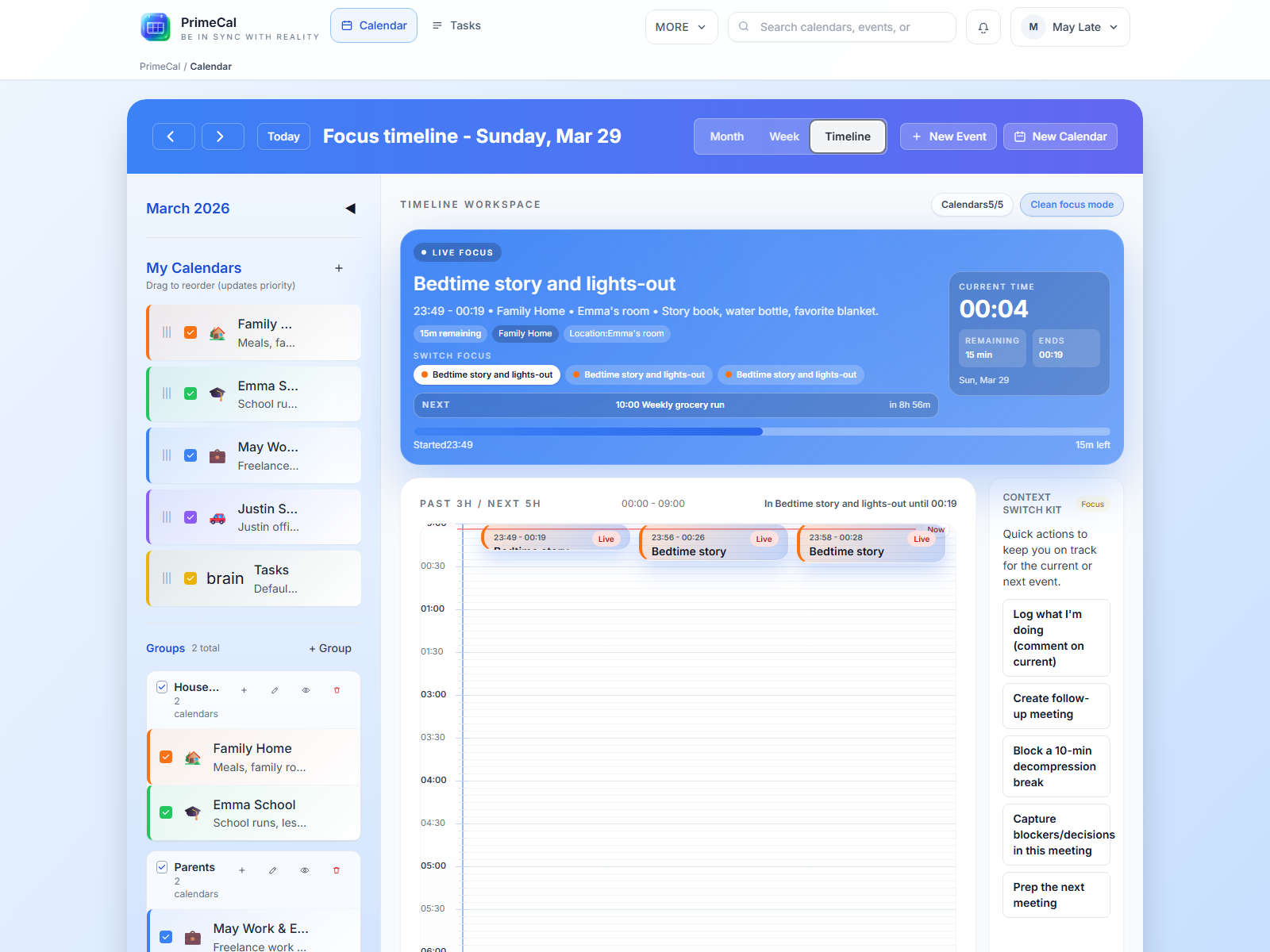
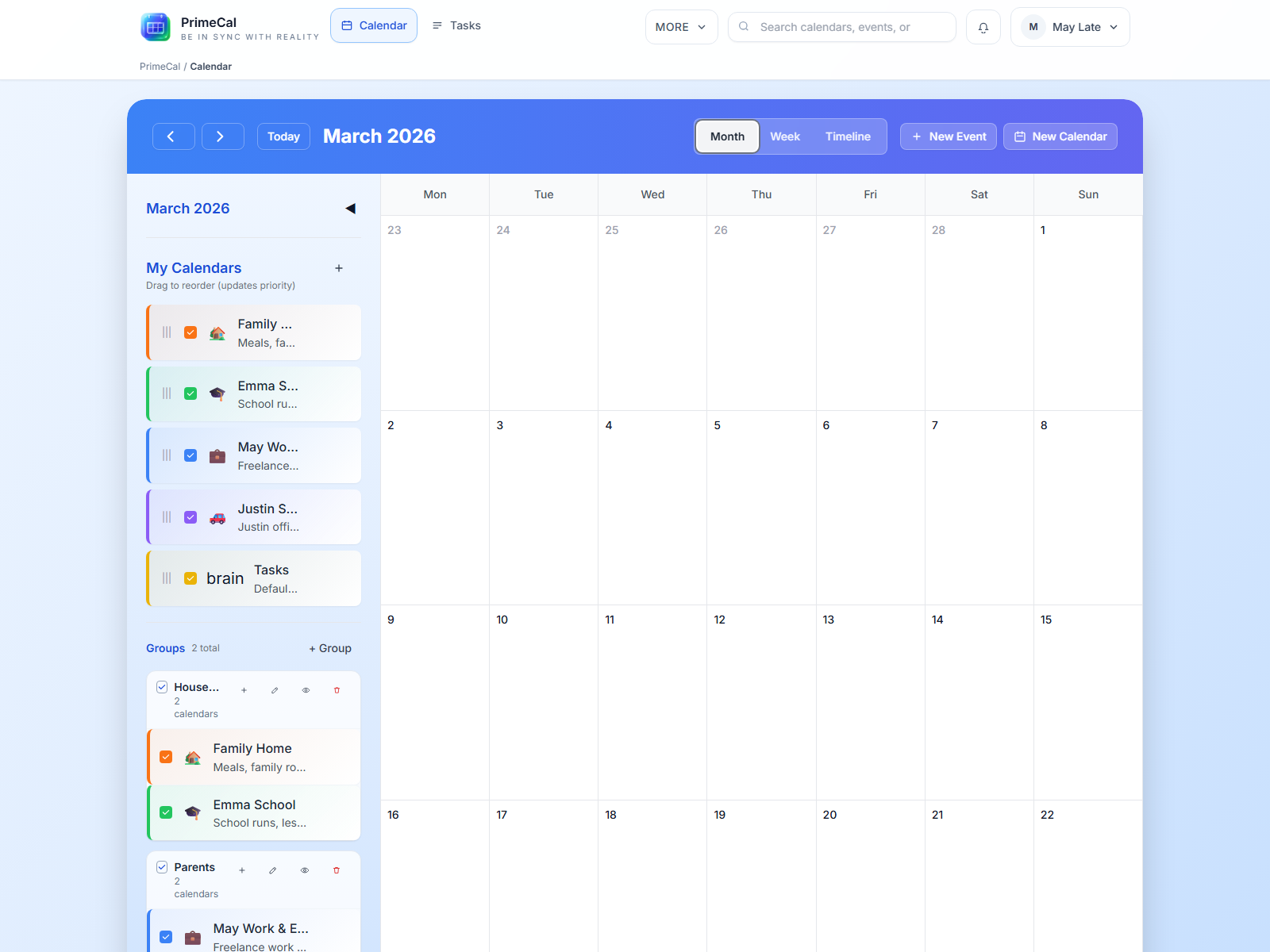
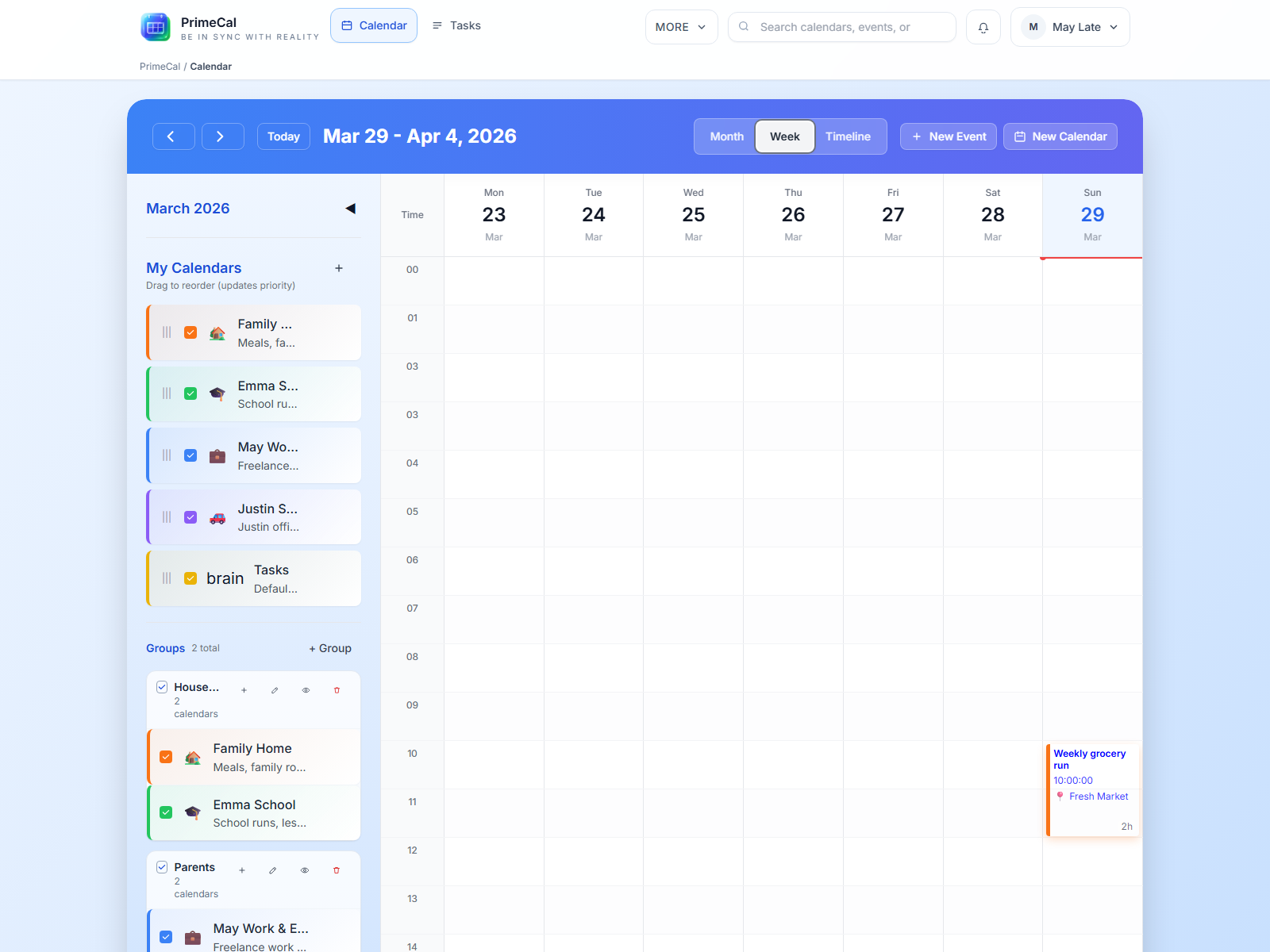
PrimeCal shows the same event data in three primary scheduling views: Focus, Month, and Week. Each view emphasizes different decisions.
Quick Comparison
| View | Best for | Key behavior |
|---|---|---|
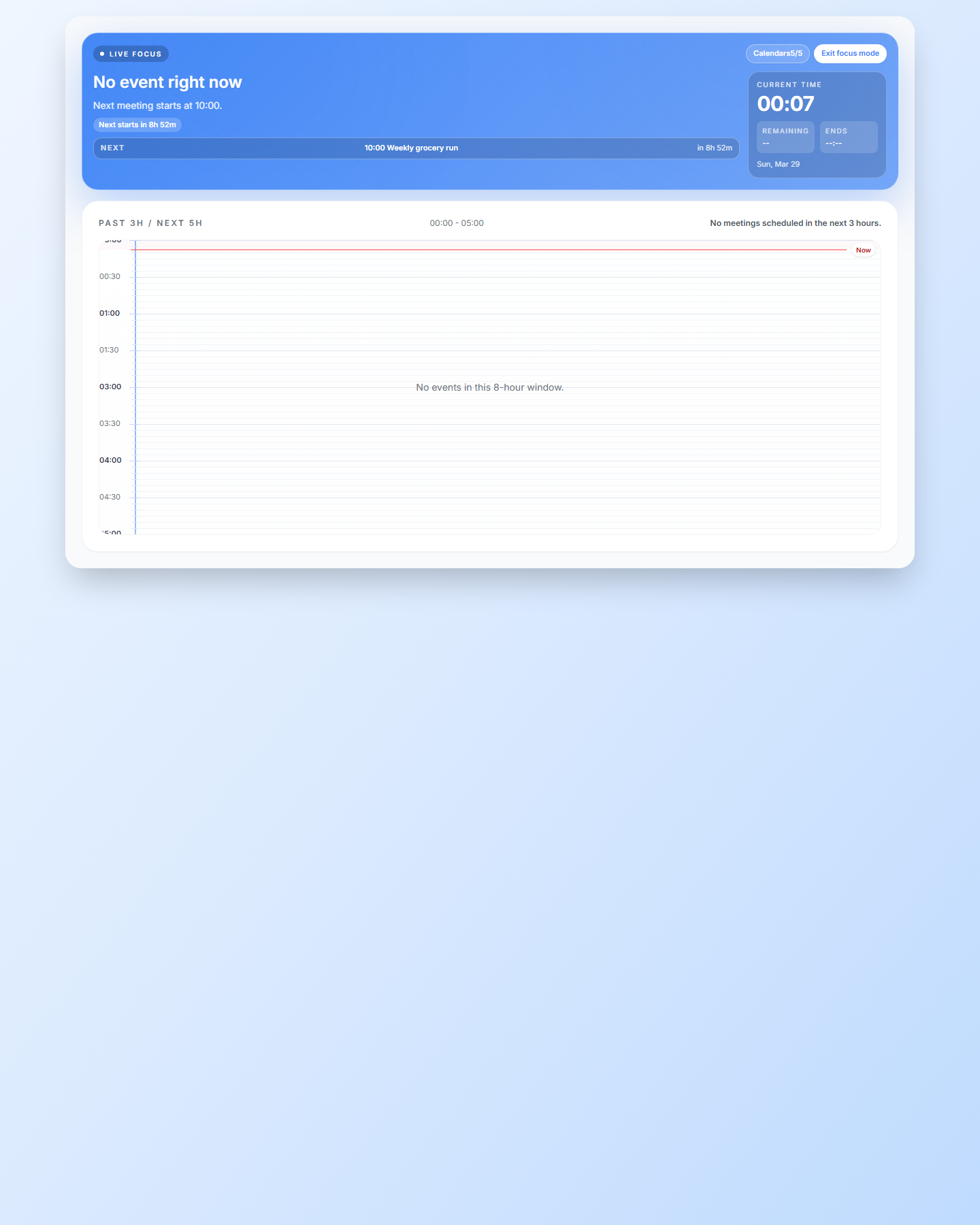
| Focus view | Current work and the next event | Shows the current timeline state, next item, remaining time, and quick meeting actions. |
| Month view | Planning across many days | Shows a six-week grid, compact event cards, and a selected-day detail panel. |
| Week view | Detailed scheduling | Shows a 24-hour grid, overlap layout, drag-to-create, and precise time placement. |
Focus View
- Shows the current and next event prominently.
- Includes a live clock and remaining time indicator.
- Supports drag-to-create in the timeline.
- Shows meeting links when the event contains them.
- Respects hidden live Focus labels from the profile page.
- Stays compact and boxed even when the global calendar workspace is set to full width, so deep-work lists do not stretch across ultra-wide screens.
In practice, this means Focus can use the same data as the other calendar views while keeping a tighter visual rhythm.
Different from the Tasks Focus tab
This calendar Focus view renders your existing calendar events compactly. The Tasks workspace has an unrelated Focus tab for a daily list of routine and due tasks — see Focus and Scheduling.
Month View
- Shows a six-week grid layout.
- Uses calendar and event colors in compact cards.
- Surfaces per-day event counts when space is limited.
- Shows a selected-day detail panel on desktop.
- Can show reservation-related items where those features are enabled.
Week View
- Uses a 24-hour vertical time grid.
- Supports drag selection to create a pre-filled event.
- Sorts overlapping events by calendar rank, then calendar ID, then event ID.
- Shows a current-time indicator during the day.
- Can turn real locations into map links.
Visibility And Color Rules
- Hiding a calendar from the sidebar removes it from Focus, Month, and Week views.
- Hiding labels in the profile page only affects Focus view.
- Calendar colors are the default visual source across all views.
- Event-level colors override the calendar color for that specific event.
Live View Examples