Managing Multiple Calendars
When you have five or more calendars — family, work, personal, kids' activities, hobbies — the sidebar can get crowded fast. Calendar groups are PrimeCal's way of keeping that sidebar organized: fold related calendars under a shared heading, and collapse or expand the whole group with one click.
Calendar Groups
A group is a collapsible section in the sidebar that holds one or more calendars. Groups are purely organizational — they don't affect where events are stored or how they appear in the calendar view.
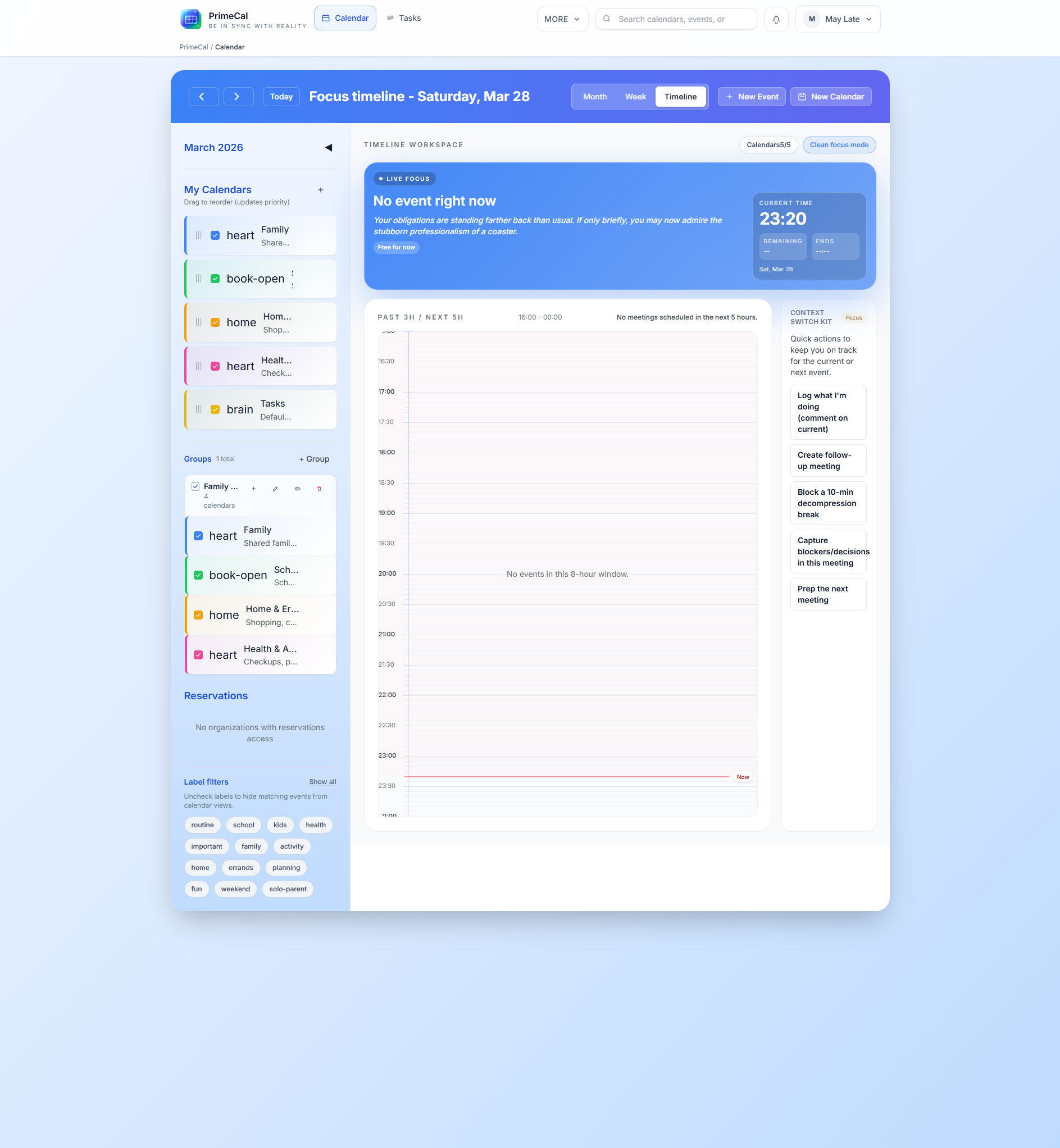
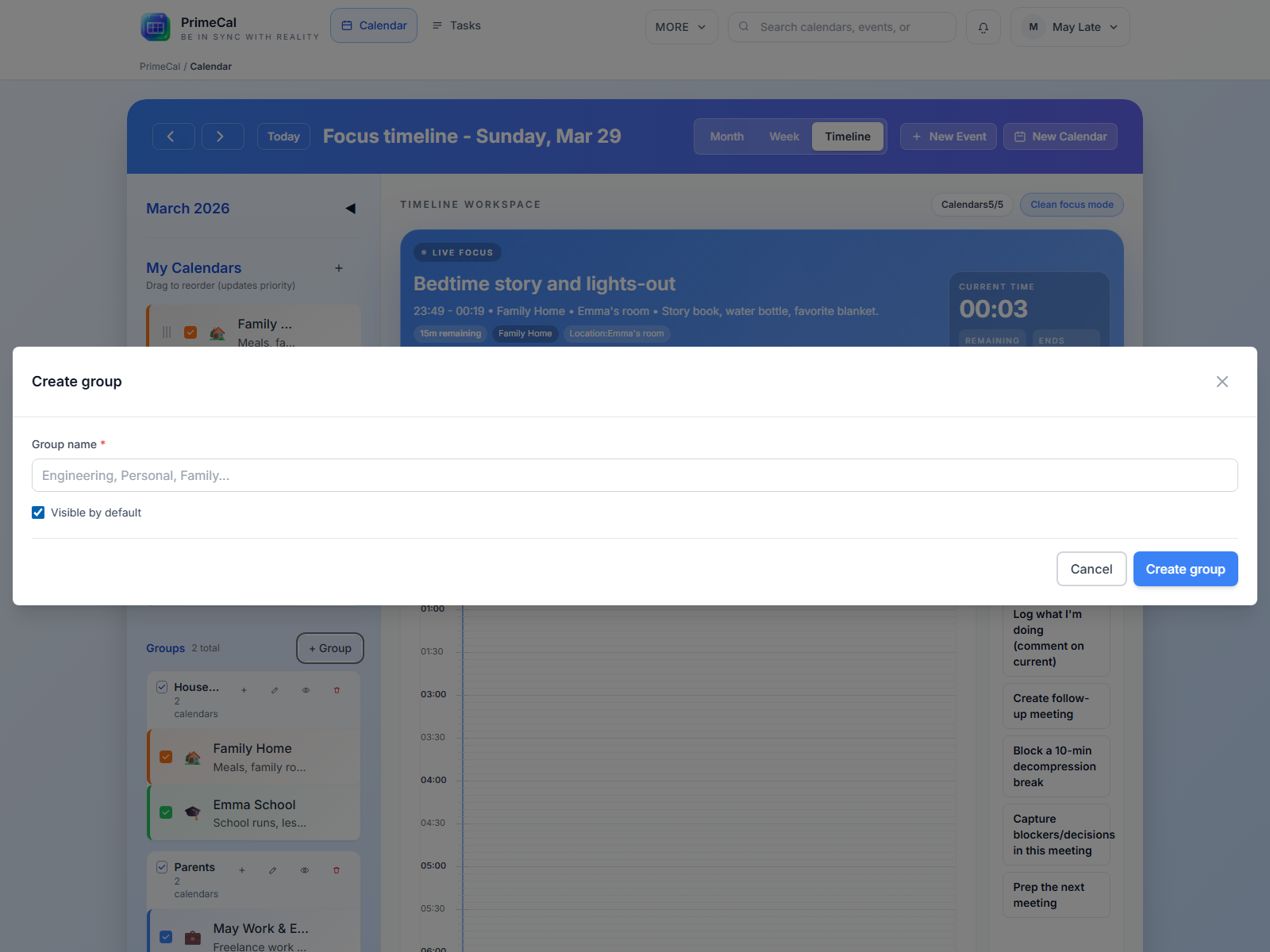
Creating a Group
- In the sidebar, click + New Group (usually at the bottom of the calendar list, or in the sidebar overflow menu).
- The Create Group dialog opens. Enter a name for the group.
- Click Save.
The new empty group appears in the sidebar.
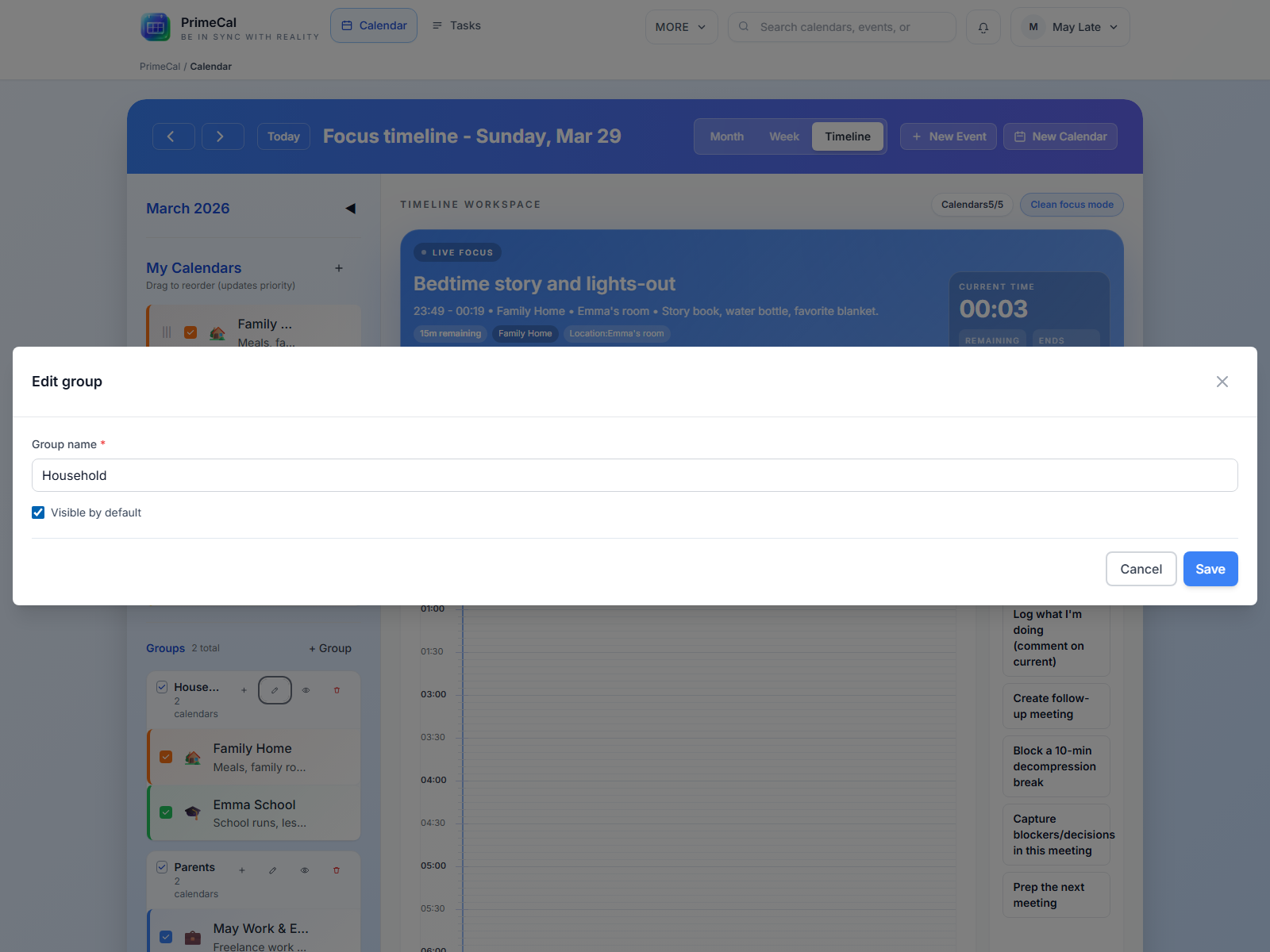
Renaming a Group
- Hover over the group header to reveal the group's options menu.
- Click Rename (or the pencil icon).
- Enter the new name and confirm.
Assigning a Calendar to a Group
- Hover over a calendar name in the sidebar.
- Click the three-dot menu (⋮) next to the calendar.
- Select Move to group.
- Choose the target group from the list.
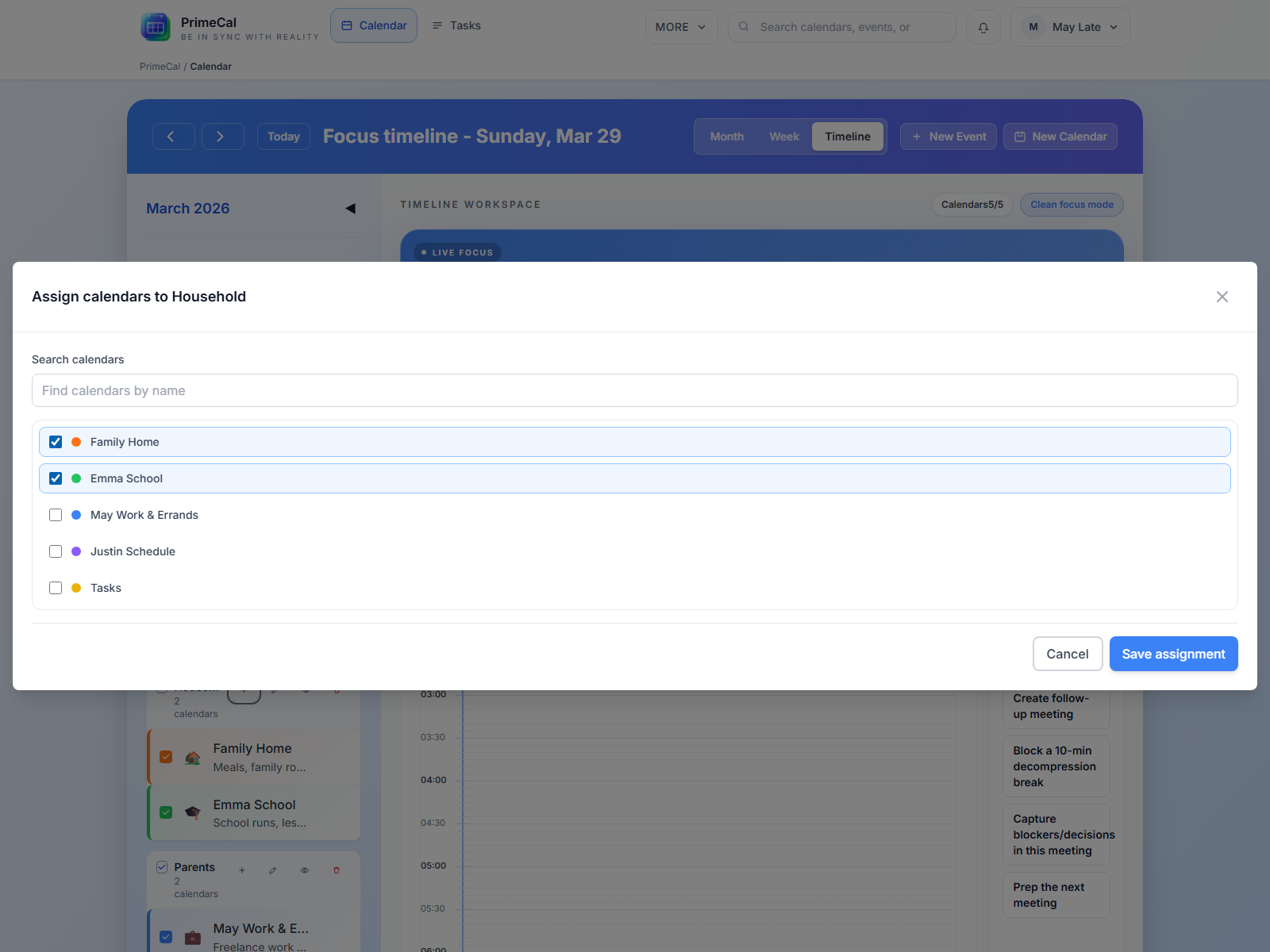
You can also move calendars between groups the same way — pick a different group from the same dialog.
Collapsing and Expanding Groups
Click the group header (the group name row) to collapse or expand it. When collapsed, the calendars inside are hidden from the sidebar list and their events are hidden from the calendar view. Click again to expand.
This is the fastest way to declutter the view: collapse all groups except the one you want to focus on.
Toggling Individual Calendar Visibility
Within any group (or in the ungrouped calendar list), you can show or hide individual calendars:
- Click the colored dot or checkbox next to the calendar name to toggle it off.
- The dot dims when the calendar is hidden.
- Click again to restore it.
See Calendar Colors and Visibility for more detail on the visibility system.
Focusing on One Person's Schedule
A common use case for families or teams: you want to look at just one person's events without the noise of everyone else's.
Example: May wants to check Noah's week before scheduling anything.
- She collapses the "Personal" group (hiding her own personal calendar).
- She hides Sue's School calendar by clicking its dot.
- She hides Will's Work and Personal calendars.
- She's left seeing only the Late Family calendar and Noah's individual events.
All the hidden calendars are still there — one click on each restores the full view.
Free Plan Limit
The Free plan supports up to 3 calendars total. Groups themselves don't count toward this limit — only the calendars inside them do. The sidebar shows a count of your current calendars and the plan limit.
If you reach 3 and need more, consider whether some calendars can be consolidated (for example, putting both kids' events on the Example Family calendar with color overrides per event, instead of maintaining a separate calendar per child).
Paid plans support unlimited calendars — see Plans and Pricing.
Example: The Example Family Sidebar
Here's how the Example family sidebar looks after a few weeks of use:
Family group
- Example Family (Green)
Work group
- Jordan — Work (Blue)
Personal group
- Alex Personal (Pink)
- Jordan — Personal (Indigo)
Kids group
- Robin — School (Yellow)
That's 5 calendars across 4 groups — over the Free plan's 3-calendar limit, so this setup needs a paid plan. Milo's Basketball Practice events live on Example Family with an Orange event-level color override instead of a calendar of their own, keeping the total lower while still making Milo's events visually distinct.
When Alex wants to check just the family shared calendar, she collapses Work, Personal, and Kids in one pass — three clicks — and the view is immediately clean.
Name your groups by role or area of life ("Work", "Family", "Personal", "Kids") rather than by person name. Roles stay stable even when individual people or calendars change.
Groups are a sidebar-only feature. They do not create any folder structure in the underlying data — events are associated with calendars, not groups.