Creating Events
PrimeCal uses one shared event modal, so the creation flow stays familiar no matter where you start.
Common Entry Points
New Eventin the workspace header- Clicking a day in Month view
- Clicking or dragging a time slot in Week view
- Creating from the live Focus timeline
The Shared Event Modal
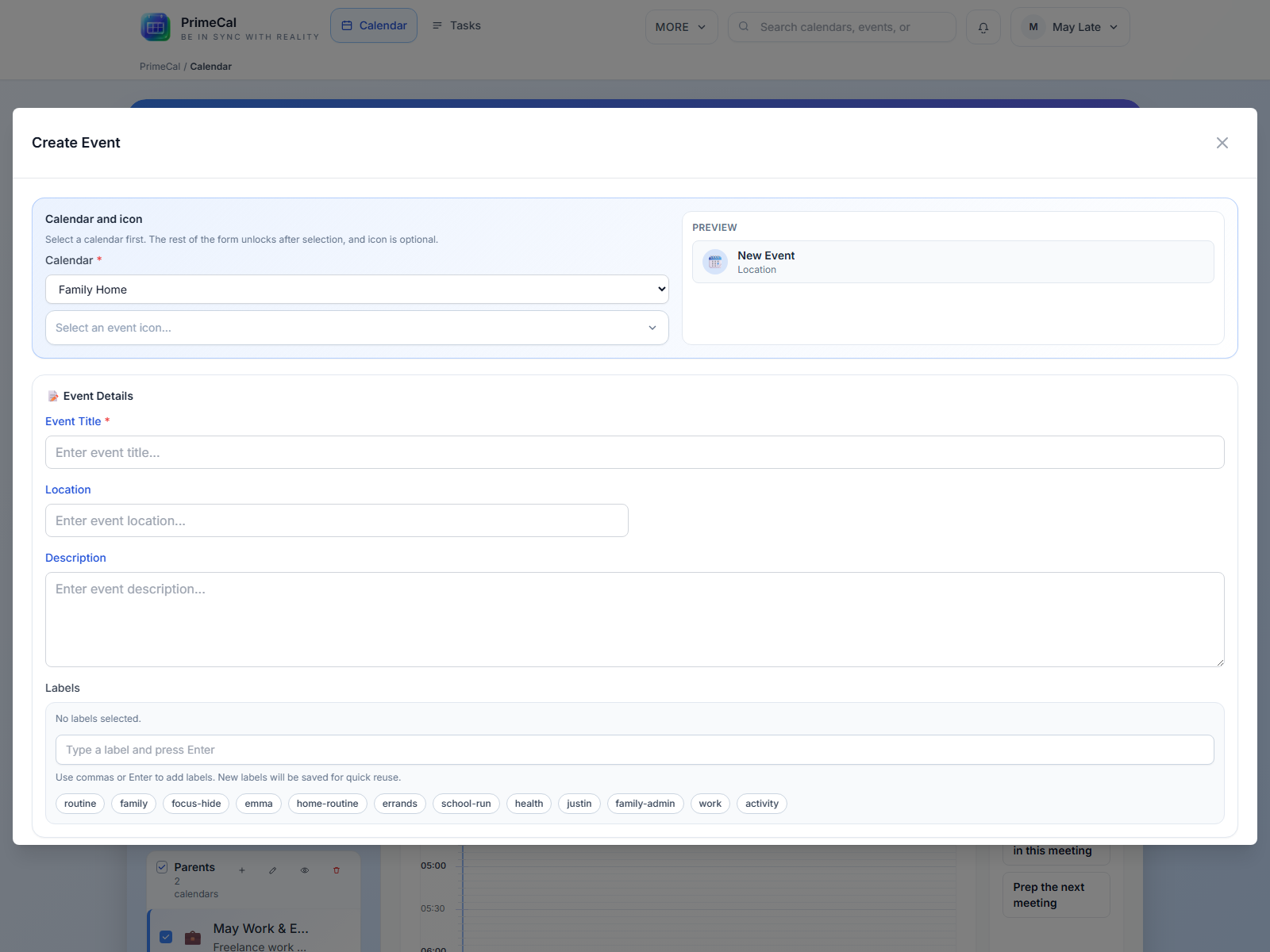
Fields Users Work With Most
| Field | Typical use |
|---|---|
| Title | Short event name that is easy to scan |
| Calendar | The calendar that owns the event |
| Start and end | Date and time placement |
| All-day | Full-day plans, travel, birthdays, holidays |
| Location | School, meeting place, home, clinic, store |
| Notes | Agenda, checklist, meeting details |
| Labels | Reusable tags for filtering and Focus behavior |
| Color | Optional event-specific emphasis |
| Recurrence | Routines that repeat on a schedule |
Practical Creation Flow
- Start from the view that gives you the right time context.
- Confirm the calendar first.
- Fill the title and schedule.
- Add location, labels, or notes only when they help.
- Use recurrence for routines.
- Save and confirm the result in the view you care about most.
When To Use Labels And Colors
- Use labels for meaning, filtering, and Focus behavior.
- Use calendar colors for broad categories like family, work, or school.
- Use event colors only when a single event needs to stand out from the rest of its calendar.
After Saving
Check the event in more than one view:
- Month view for overall planning
- Week view for exact time placement
- Focus view for live and next-up behavior
Continue Reading
Developer Reference
For request and recurrence details, use the Event API.