Calendar Groups
Calendar groups organize related calendars in the left sidebar. They do not create new permissions on their own, but they make large calendar lists manageable.
If you want to share calendars with other people, use people groups instead. People groups manage members and access; calendar groups only organize your own sidebar.
What A Group Can Do
- collect multiple calendars under one label
- let you show or hide a whole group quickly
- keep related calendars together in the sidebar
- give you a separate rename, assign, and delete workflow without deleting the calendars themselves
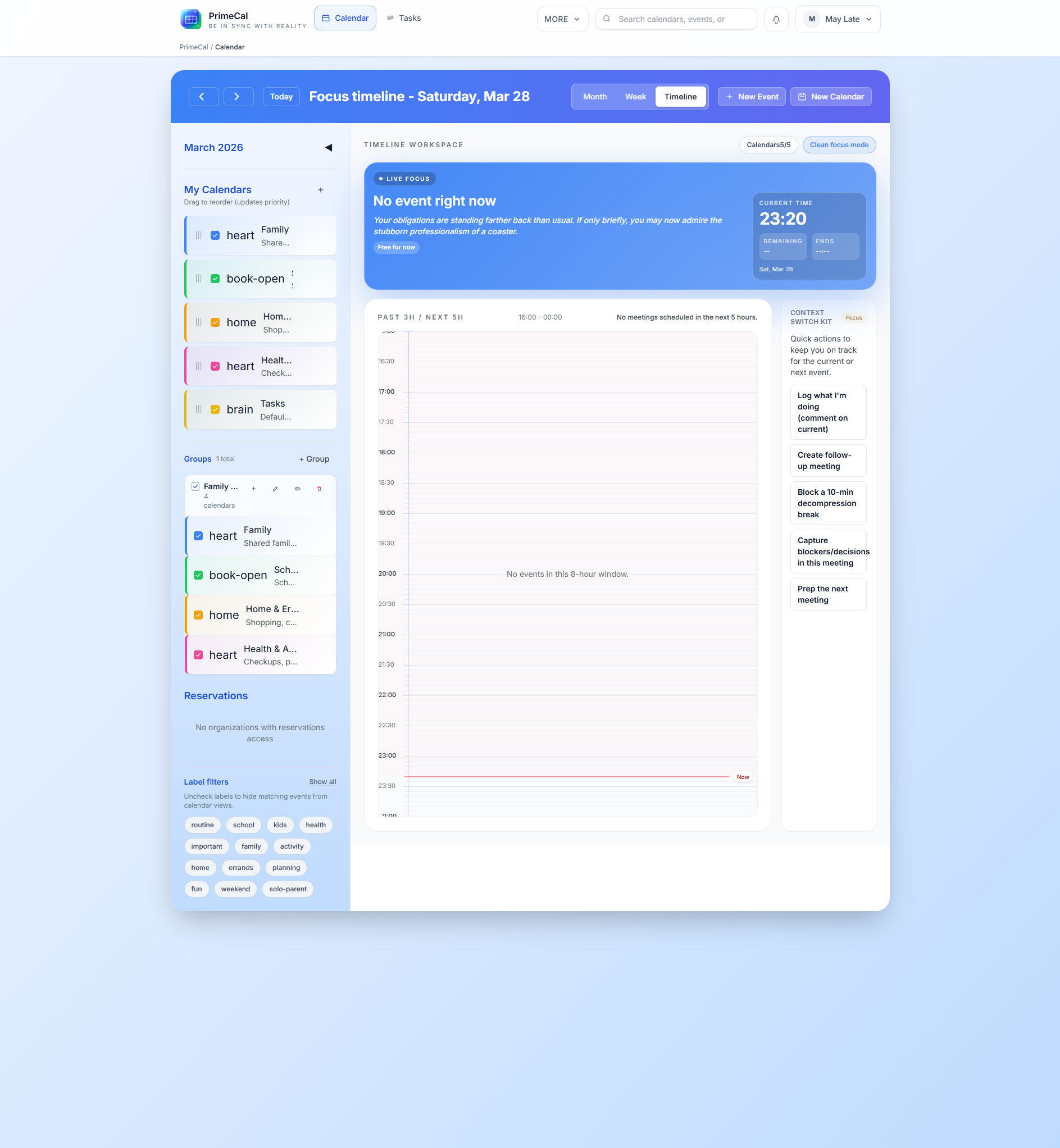
Create A Group
- Open
Calendar. - Find the
Groupssection in the left sidebar. - Click
+ Group. - Enter the group name.
- Choose whether it is visible by default.
- Save the group.
Rename Or Edit A Group
- Click the pencil icon on the group row.
- Change the group name or the visibility flag.
- Save the update.
The current UI supports short, descriptive names best because long names quickly crowd the sidebar.
Assign And Unassign Calendars
You can assign calendars to a group in two ways:
- open the group assignment action and select calendars from the list
- drag a calendar row onto the group card in the sidebar
Unassigning a calendar removes the groupId link. The calendar itself remains active and visible in the workspace.
Hide, Reorder, And Delete
Hidetoggles the group visibility state.Reorderis stored in local browser storage, so it is a per-browser preference.Deleteremoves the group only. Calendars inside it become ungrouped.
Ownership Rules
- Owned calendars can be assigned or unassigned.
- Shared calendars can be visible in your sidebar, but group-management writes still follow ownership rules.
- Deleting a group does not delete calendars or events.