Creating Calendars
A single calendar works if you have a simple schedule. But most people have several distinct areas of life — work, family, personal, kids' activities — and mixing all of those events into one calendar makes it impossible to see what's going on at a glance. That's what multiple calendars are for.
Each calendar in PrimeCal has its own color, and every event on that calendar inherits that color. In a busy week view, color is the fastest signal: at a glance, you can see which events are family commitments (green), which are work (blue), and which are personal (pink), without reading a single event title.
Your First Calendar
When you create your PrimeCal account, a default Tasks calendar is created for you automatically. It appears in the sidebar and is ready to use.
As your schedule grows, you'll want to create more.
How to Create a Calendar
- In the left sidebar, scroll to the bottom of the calendar list and click + New Calendar (or the ⊕ icon next to "My Calendars").
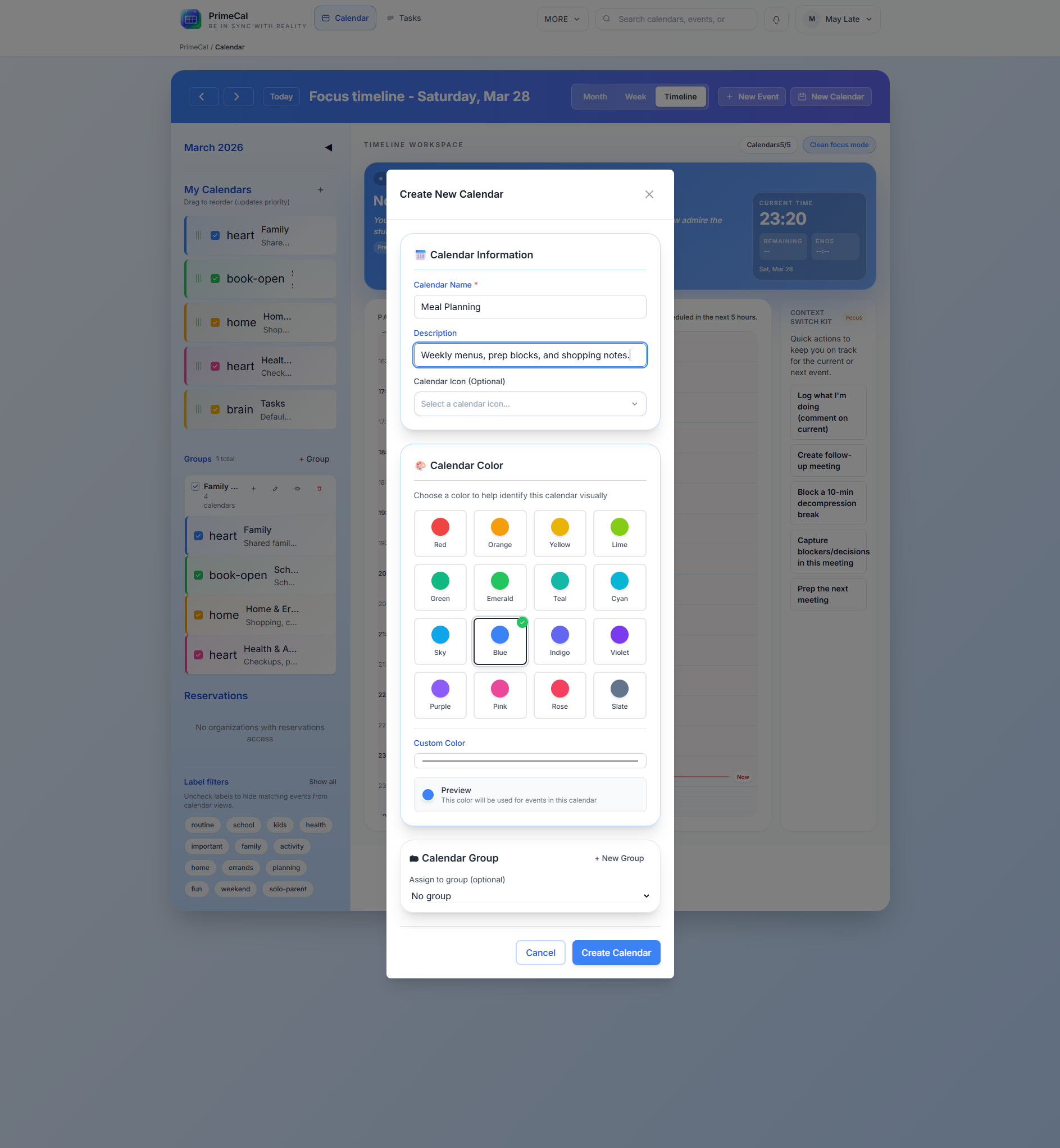
- The Create Calendar dialog opens.
- Enter a name for the calendar.
- Choose a color from the 16 available options.
- Optionally add a description — useful for shared calendars to explain the calendar's purpose to collaborators.
- Click Save (or Create).
The new calendar appears immediately in your sidebar with its colored dot. Any events you create and assign to this calendar will show in that color across all views.
Naming Your Calendars
Be specific. Generic names like "Family" or "Work" become confusing when multiple people share a PrimeCal account or when you share calendars across accounts. Good naming examples:
| Instead of | Use |
|---|---|
| Family | Late Family |
| Work | Will — Work |
| Personal | May Personal |
| School | Sue — School |
| Sports | Noah — Basketball |
The name shows in the sidebar, in event detail views, and in search results, so a clear name saves time every day.
Choosing a Color
Pick a color you'll recognize instantly in a crowded week view. The 16 colors in PrimeCal are spread across the visible spectrum, so you have plenty of distinct options:
Red · Orange · Yellow · Lime · Green · Emerald · Teal · Cyan · Sky · Blue · Indigo · Violet · Purple · Pink · Rose · Slate
For a family setup, assign each person their own color and keep it consistent across all their calendars. It becomes second nature to recognize "that's Sue's event" from the yellow color alone.
Plan Limits
On the Free plan, you can create up to 5 calendars total. The sidebar shows how many you have and how many remain. If you reach the limit, you'll see a prompt to upgrade your plan when you try to create another.
Paid plans allow more calendars — see the PrimeCal Subscription System page for details.
Example: The Blate Family Setup
The Blate family has five members with different schedules. Here's how May set up their calendars:
| Calendar name | Color | Owner | Purpose |
|---|---|---|---|
| Late Family | Green | May | Shared events: holidays, trips, family dinners |
| May Personal | Pink | May | May's own appointments, errands, personal events |
| Will — Work | Blue | Will | Work standups, meetings, deep work blocks |
| Will — Personal | Indigo | Will | Will's personal events |
| Sue — School | Yellow | May | Sue's school schedule and homework deadlines |
Noah's Basketball and Sue's Ballet are added directly to the Late Family calendar (with Noah's orange or Sue's yellow color override per event) to keep the total under the Free plan's 5-calendar limit.
After Creating a Calendar
Once created, your new calendar:
- Appears in the sidebar with its color dot
- Is enabled (visible) by default — events will show immediately
- Can be edited at any time via the three-dot menu (⋮) next to its name
- Can be shared with other PrimeCal users (see Sharing Calendars)
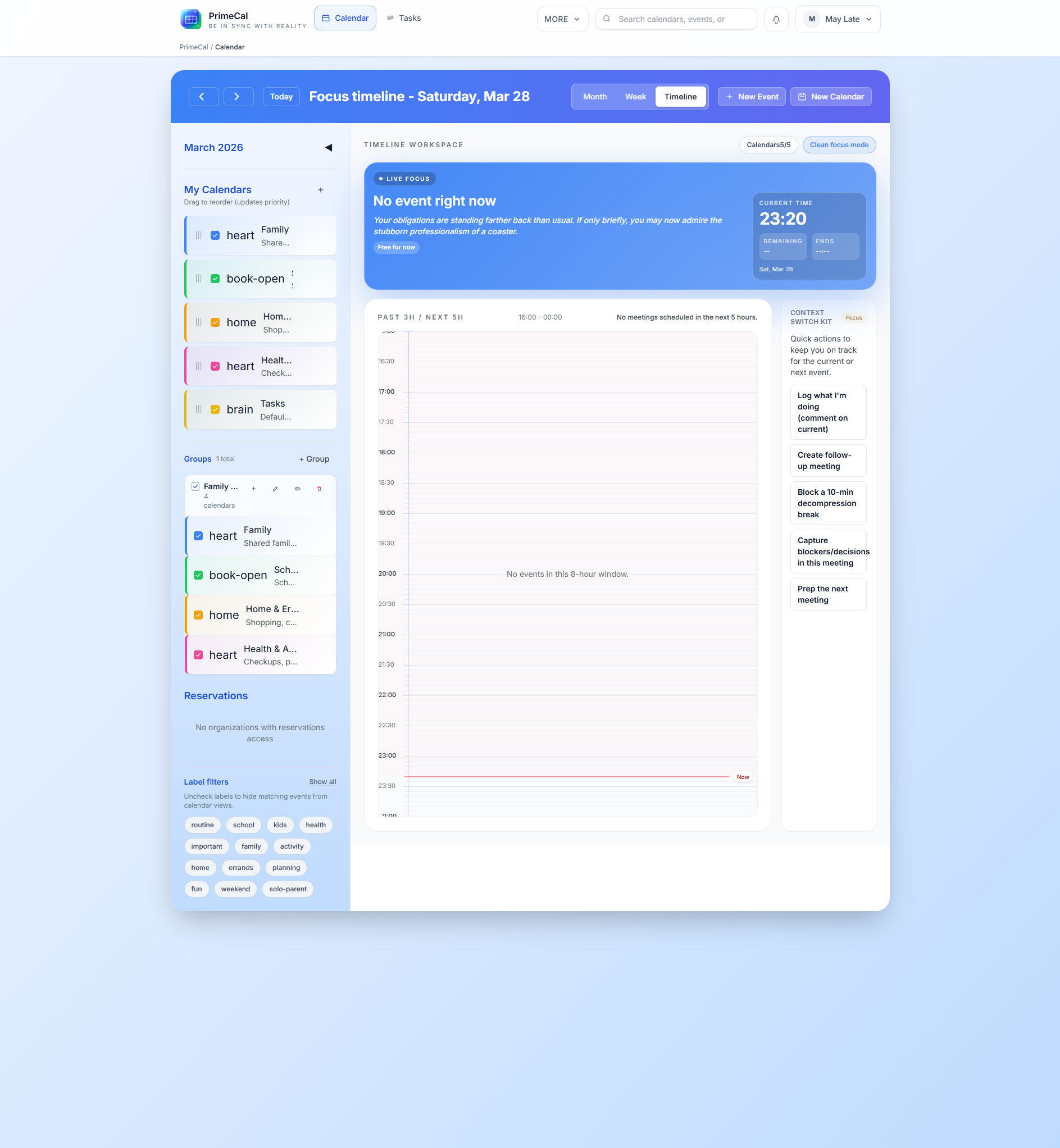
Create all your calendars before you start entering events. It's easier to assign events to the right calendar from the start than to move them later.