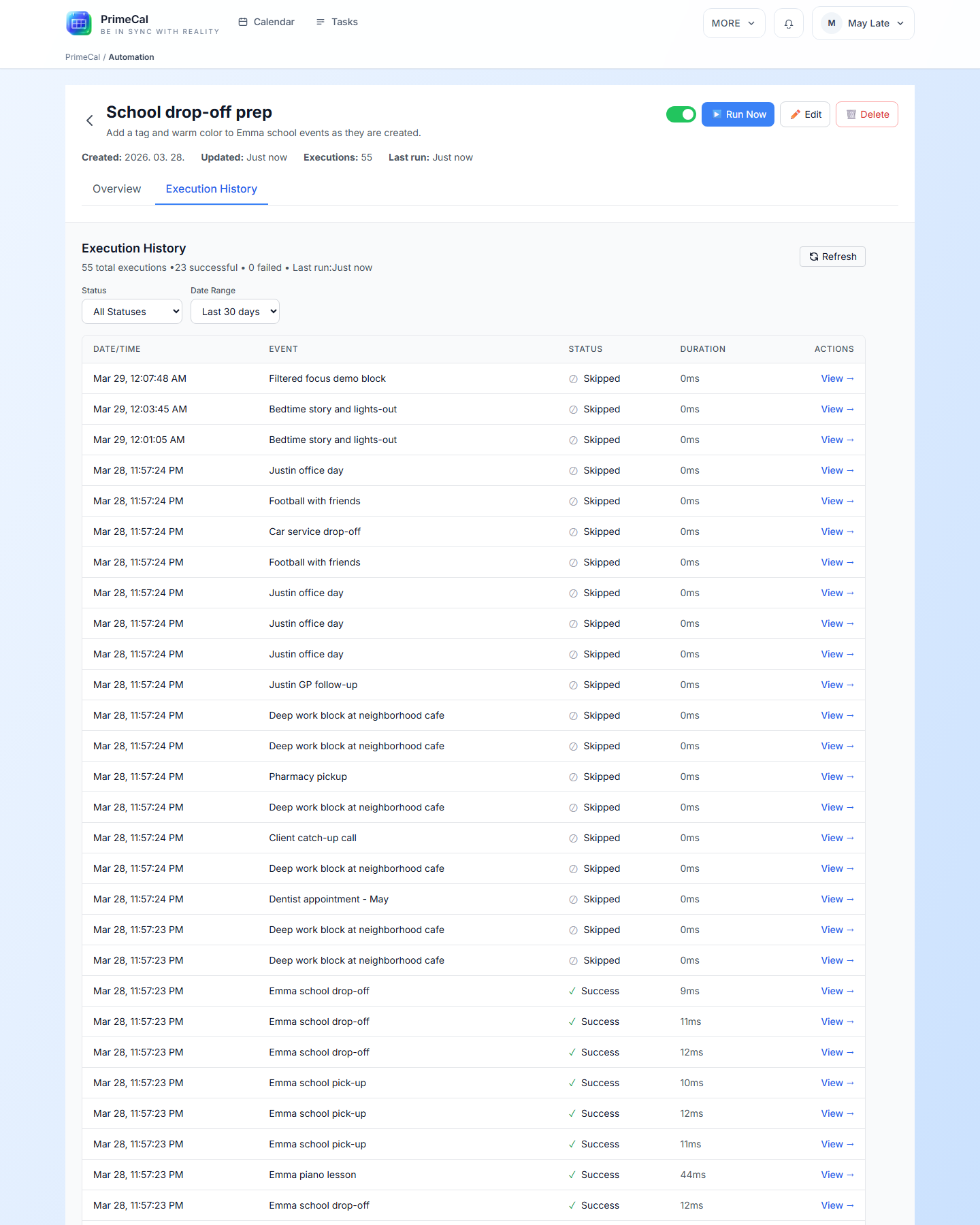
Managing And Running Automations
After a rule exists, the day-to-day work happens in the automation list and detail pages.
Filter The Rule List
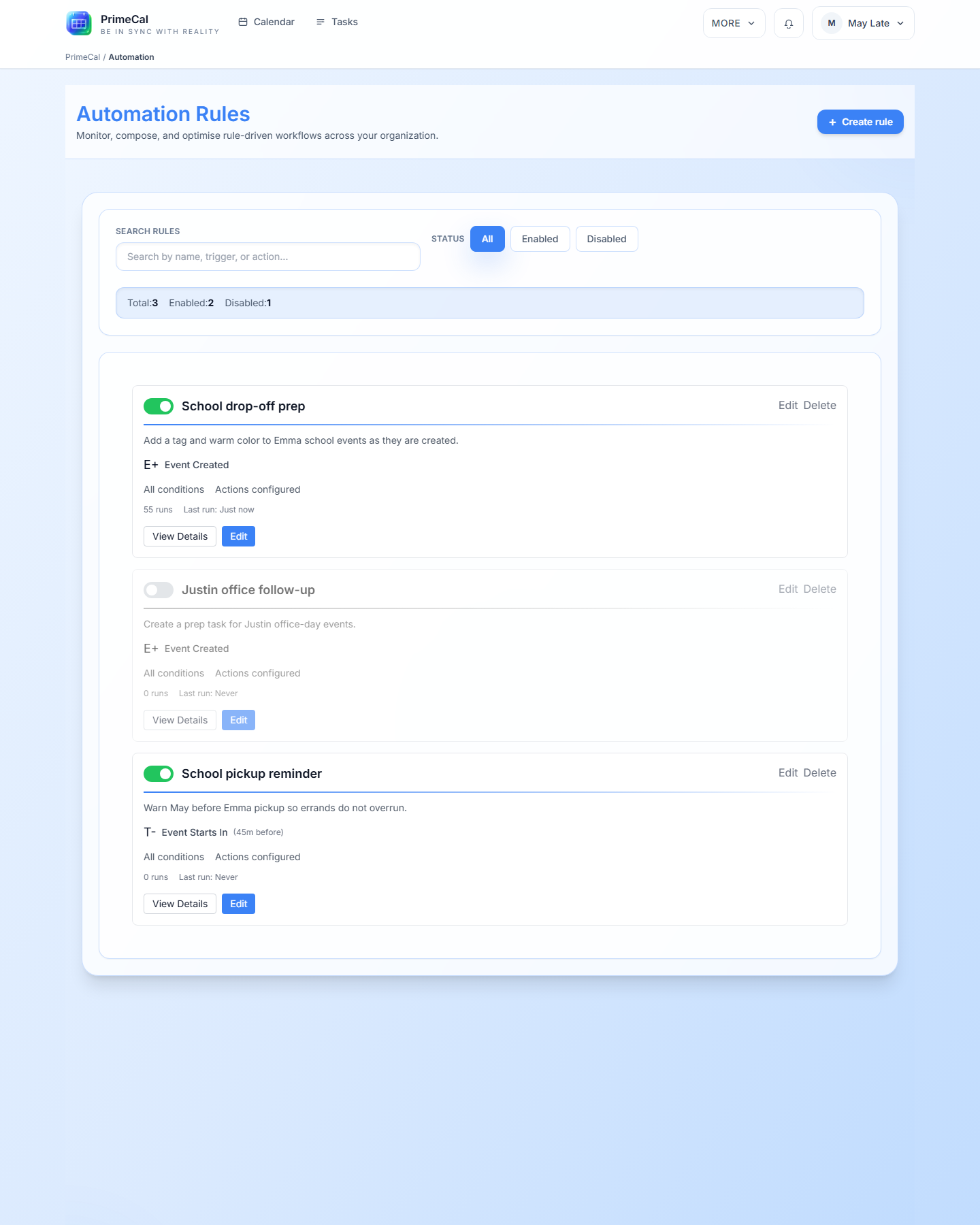
Use the list page to find the rule you want before editing or running it.
- Search by rule name, trigger, or action summary.
- Use the
All,Enabled, andDisabledfilters to narrow the list. - Read the run count and
Last runvalues directly from each rule card.
Open A Rule Detail Page
Select a rule to inspect its:
- trigger
- condition logic
- configured actions
- total execution count
- last execution timestamp
The detail page also exposes Run Now, Edit, and Delete.
Run A Rule Manually
Use Run Now when you want to test a rule against existing events instead of waiting for the trigger to fire naturally.
- PrimeCal processes matching events and writes the outcome into the audit history.
- Skipped events still appear in history so you can see why the rule did not apply.
Review Execution History
The Execution History tab is the fastest way to validate whether a rule is doing the right thing.
- filter by status
- change the date range
- inspect success, skipped, partial-success, and failed rows
- use the event row to understand which items were touched